GrowthKit AI
Find business leads on Google Maps, check which numbers are on WhatsApp, and send each contact a personal message — all from one Windows app.
1Overview
GrowthKit AI puts lead finding and WhatsApp messaging on your Windows PC. To start, make a license key for your computer with the included Key Generator and enter it in the app.
2Package contents
| Folder | What it is |
|---|---|
| Executable_App | GrowthKitAI-Setup-2.0.exe, the app installer. Give this to your customers. |
| Keygen_Tool | GrowthKitKeyGen-Setup-2.0.exe to make license keys. |
| Source_Code | The complete source: GrowthKit_AI (the app and installer scripts) and Key_gen (the Key Generator). |
| Documentation | This page. |
3Requirements
- Windows 10 or 11, 64-bit, with about 300 MB of free disk space.
- An internet connection.
- A WhatsApp number on a phone, to link to the app.
- For the AI features only: a free Google Gemini API key (see Settings).
4Installation
- Run
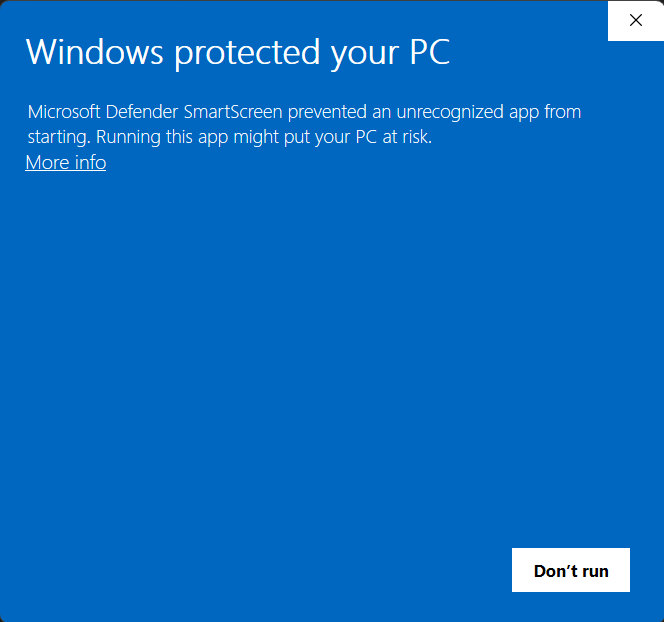
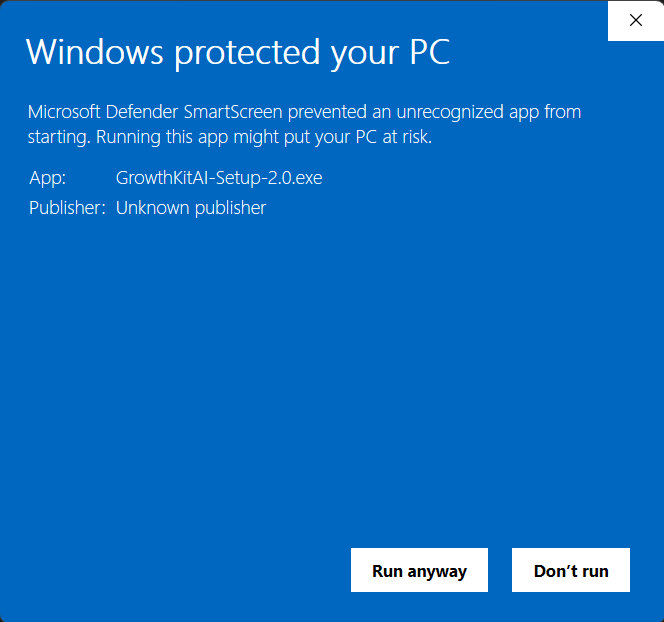
GrowthKitAI-Setup-2.0.exe. If Windows shows Windows protected your PC, click More info, then Run anyway, and accept the permission prompt.
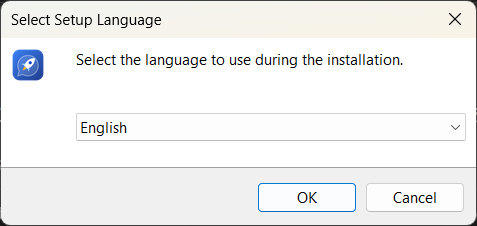
- Choose the setup language (English or Arabic) and click OK.
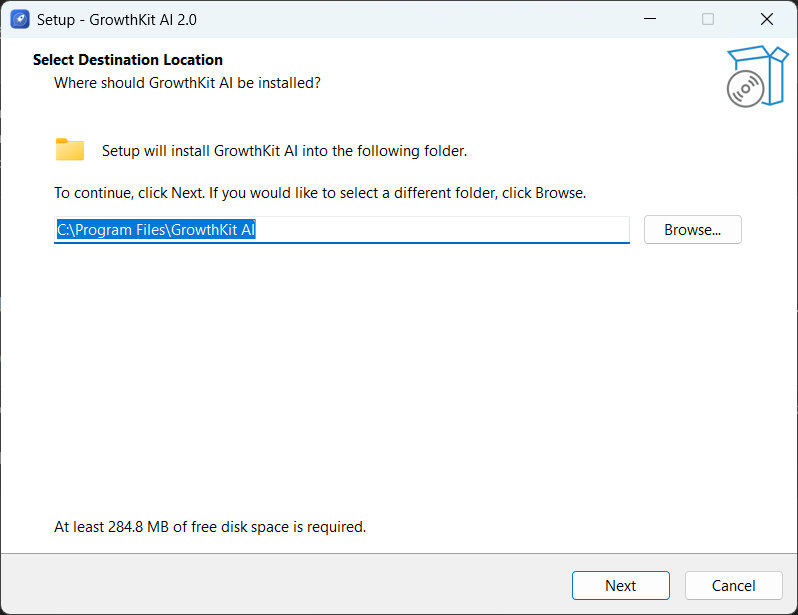
- Keep the default folder
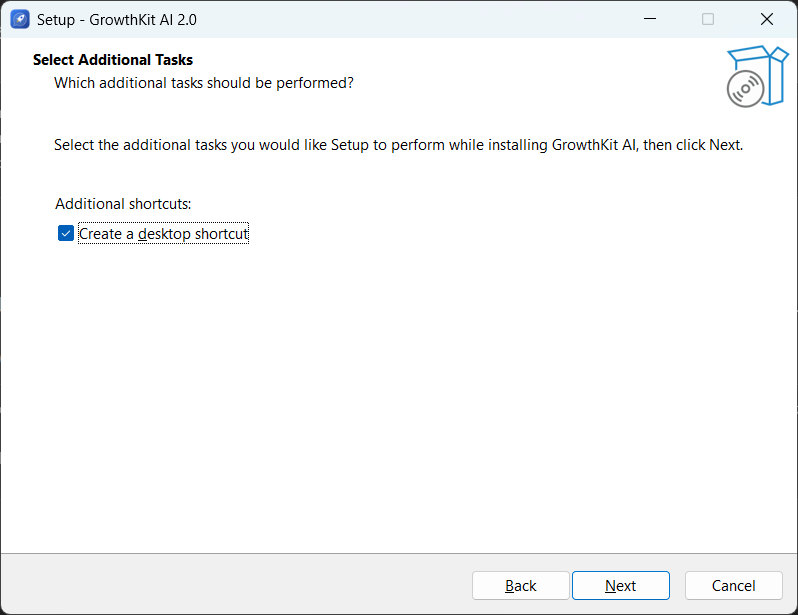
C:\Program Files\GrowthKit AIand click Next. - Keep Create a desktop shortcut ticked and click Next.
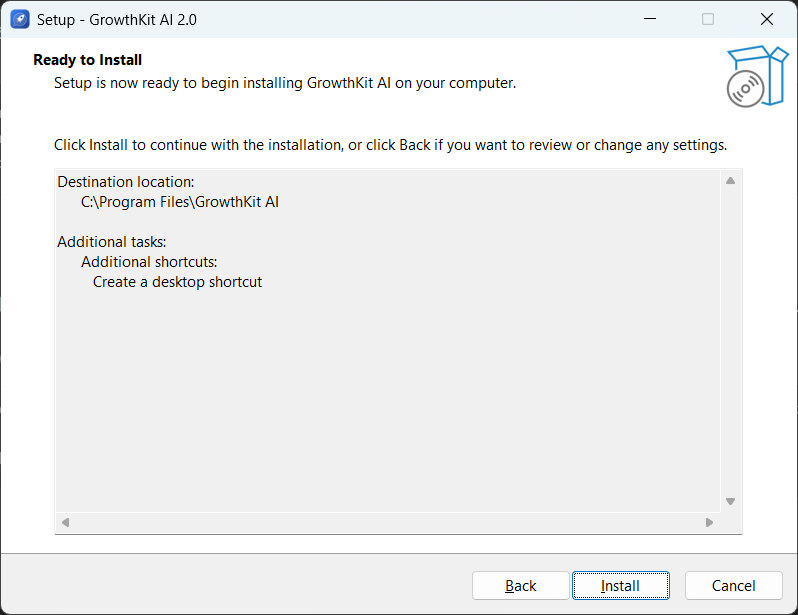
- Click Install and wait until the files are copied.
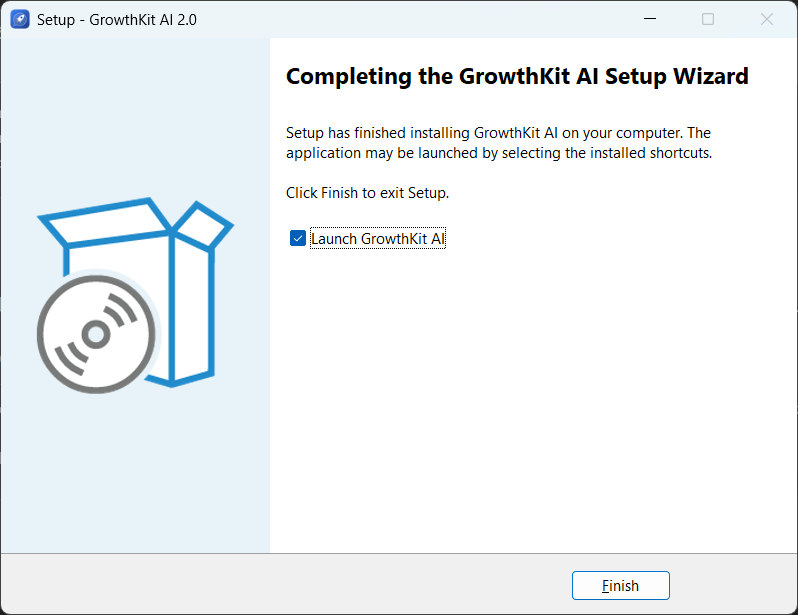
- Click Finish. The app opens on the activation screen.
5Activation
Each license works on one computer. The key is made for that computer's Machine ID.
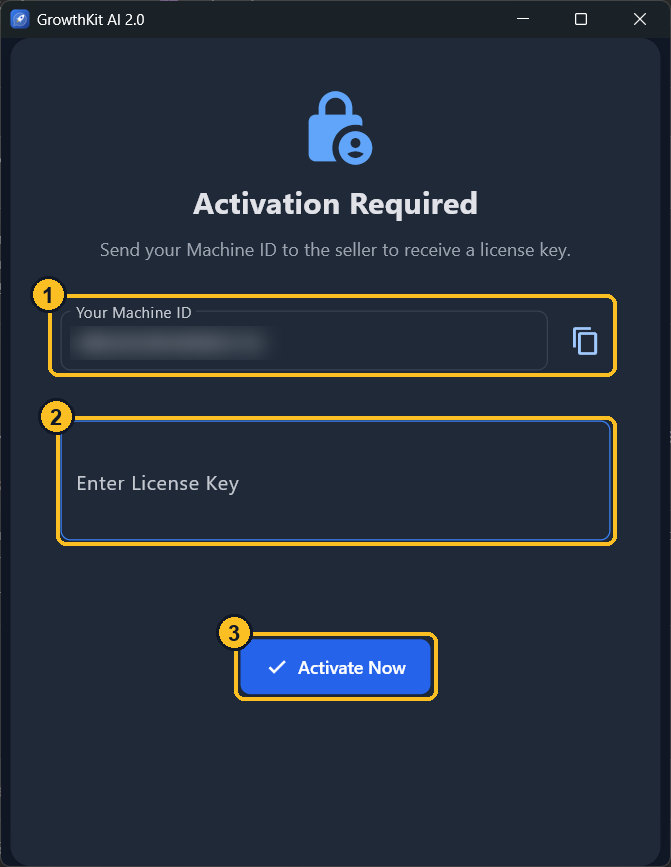
- Open the app. Copy Your Machine ID with the copy button 1.
- Make the key with the Key Generator. Paste it in Enter License Key 2.
- Click Activate Now 3.
| Message | What to do |
|---|---|
| This license is for a different machine | The key was made for another computer. Make a key for this computer's Machine ID. |
| The license expired on … | Make a new key with a new period for the same Machine ID. |
| The computer's date is earlier than the last time the app was used | Fix the Windows date and time, then reopen the app. No new key is needed. |
6Key Generator
- Install
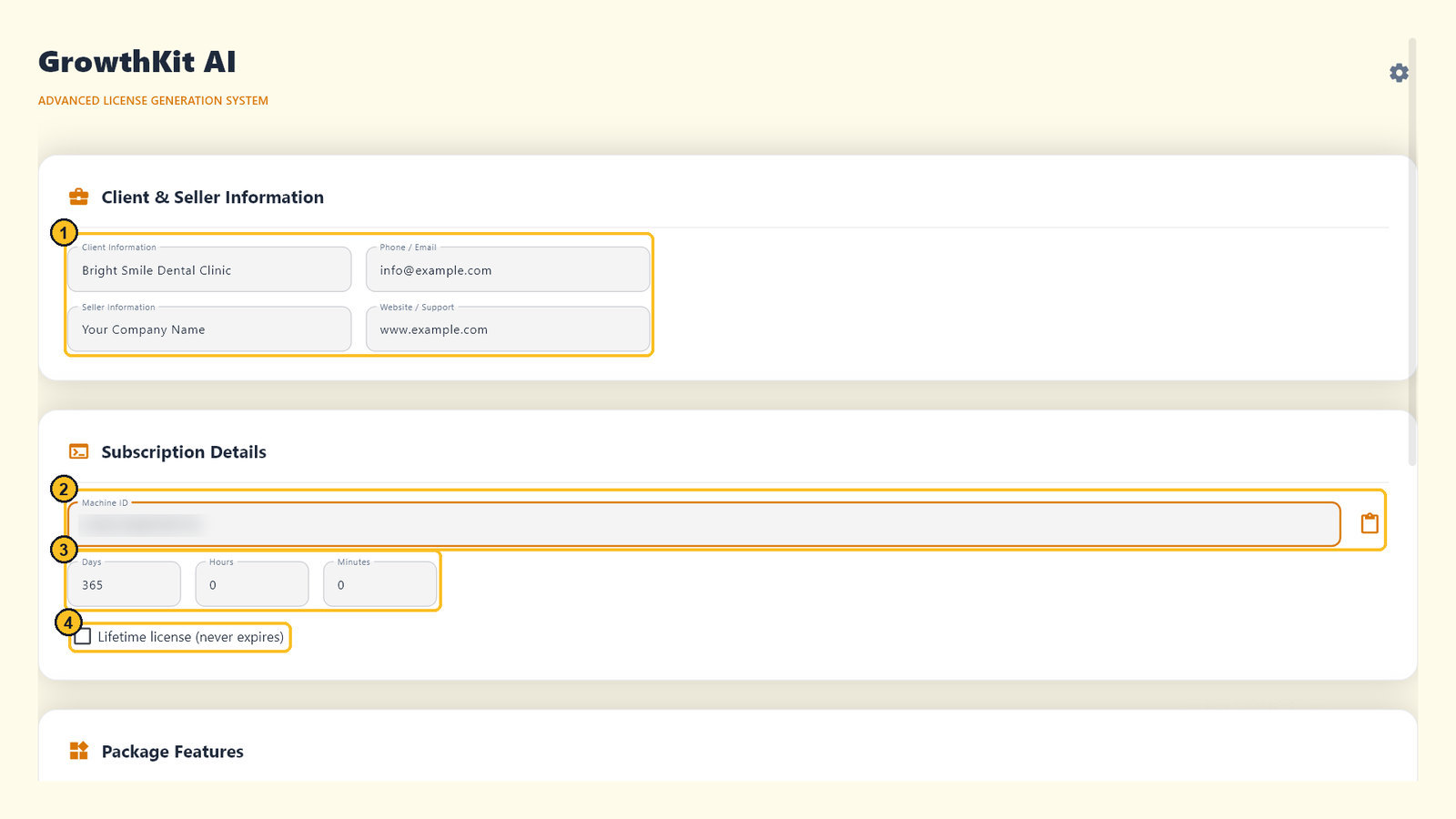
GrowthKitKeyGen-Setup-2.0.exeand open it. - Enter your details 1: your name or business and your phone or email. They are optional, and they appear in License Details inside the app.
- Paste your Machine ID 2. You find it on the app's activation screen (see Activation). It must be 16 characters.
- Set the duration in days, hours and minutes 3, or tick Lifetime license (never expires) 4.
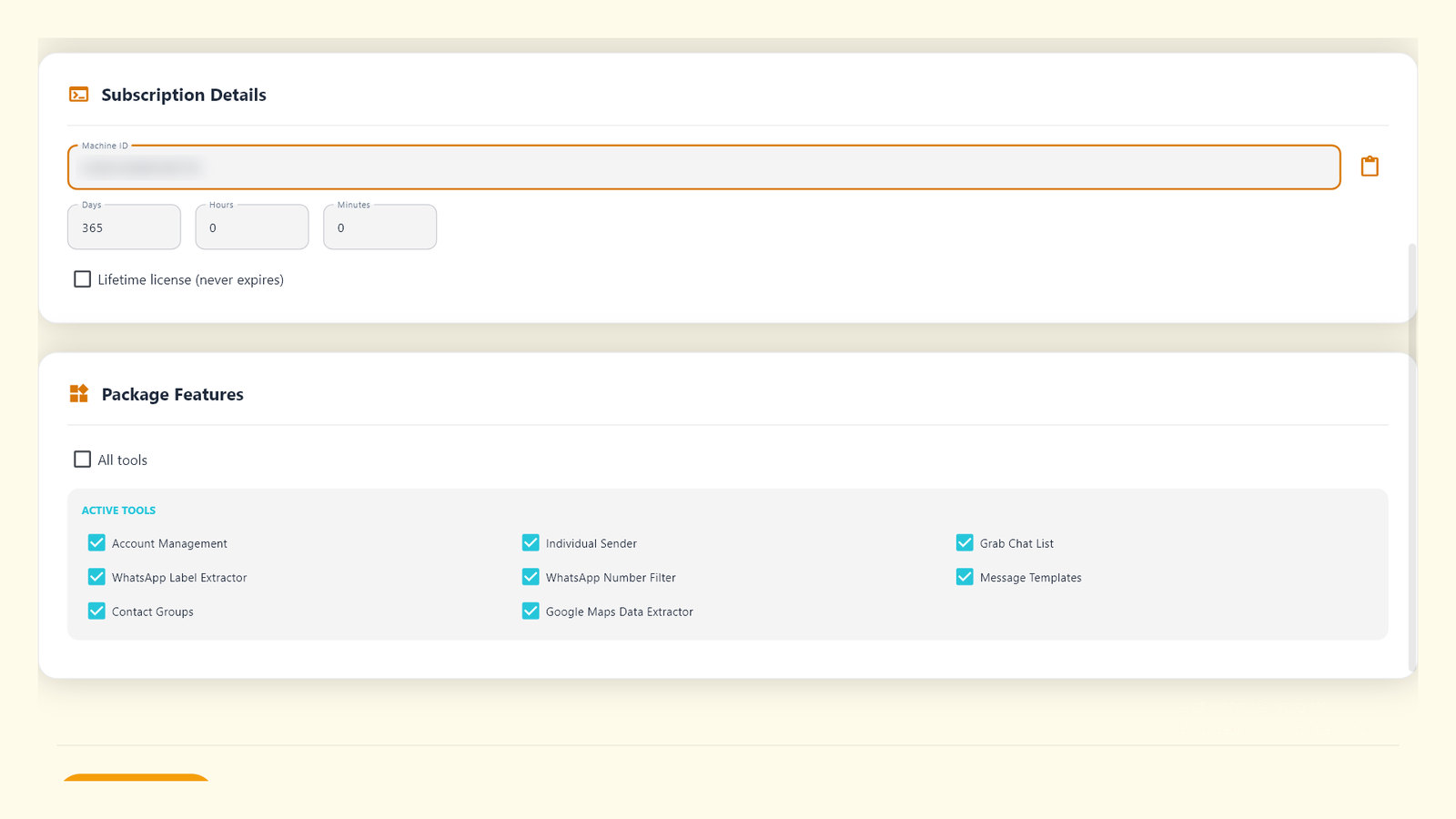
- Under Package Features, tick the tools you want to use, or All tools.
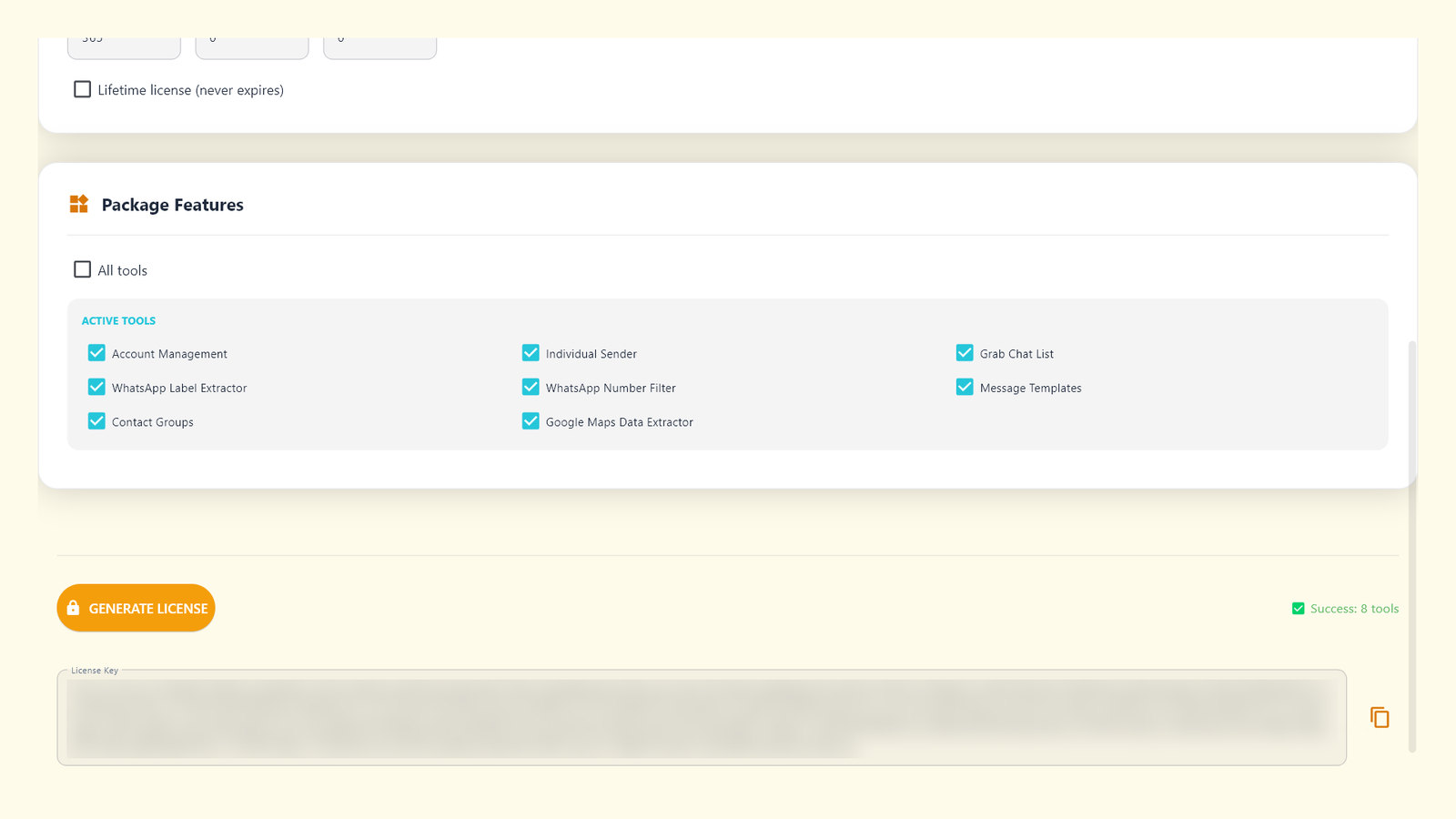
- Click GENERATE LICENSE, copy the key (it starts with
GK2.) and paste it into the app's activation screen.
7Dashboard
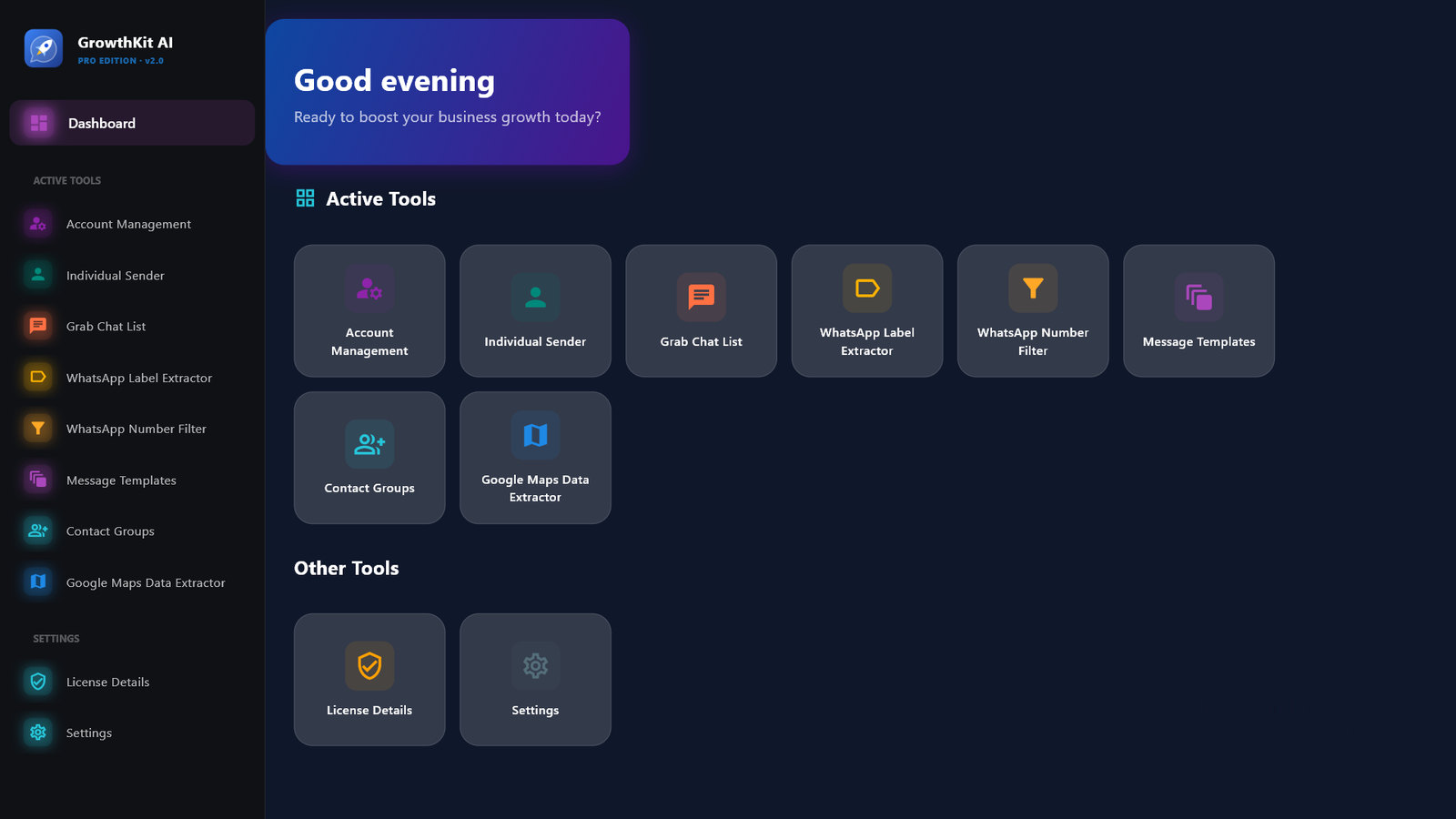
The menu on the left opens every tool. The dashboard shows the available tools; click a card to open it.
8WhatsApp accounts
Every WhatsApp tool needs a linked account. You can link several; each has its own browser profile.
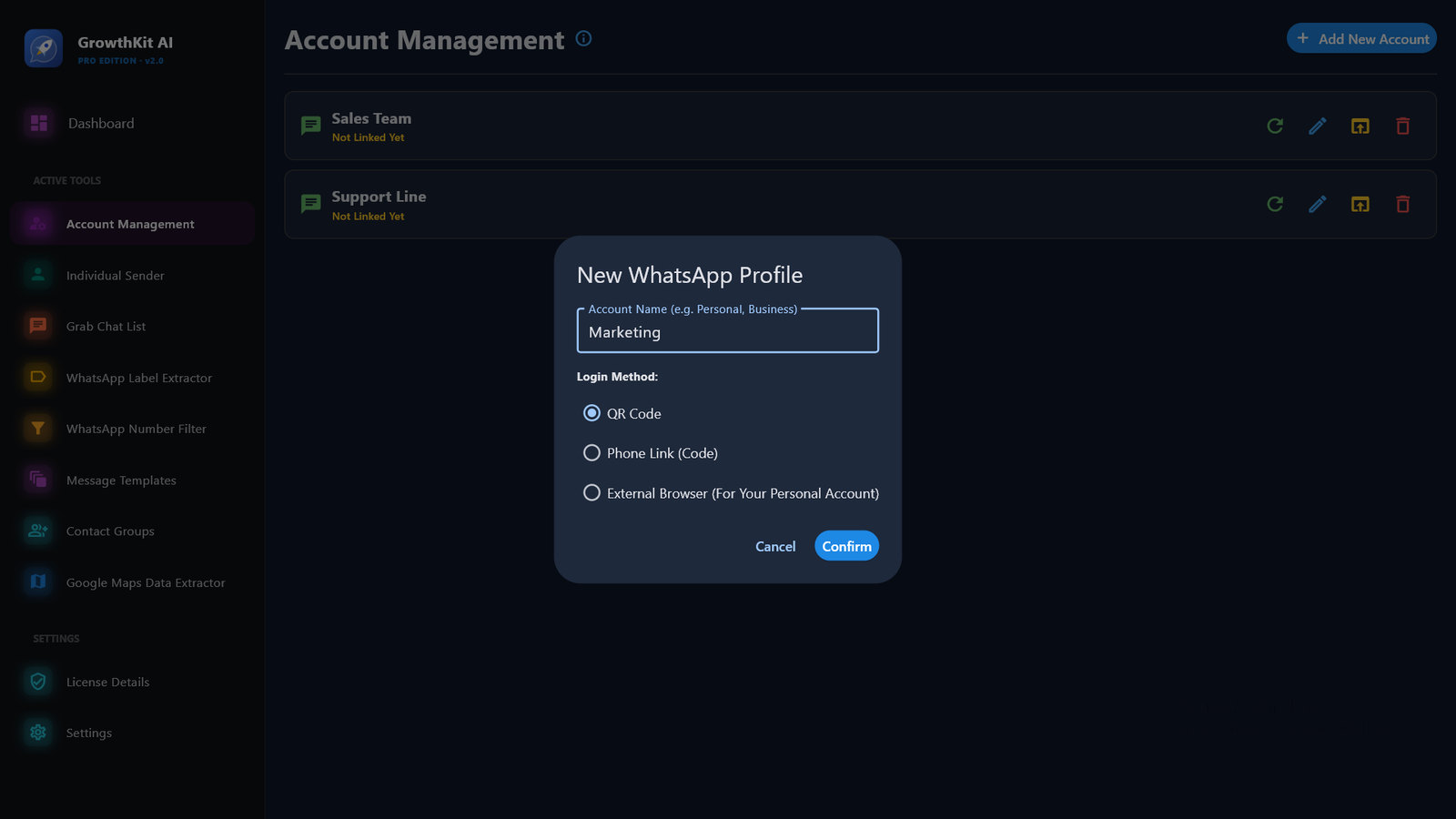
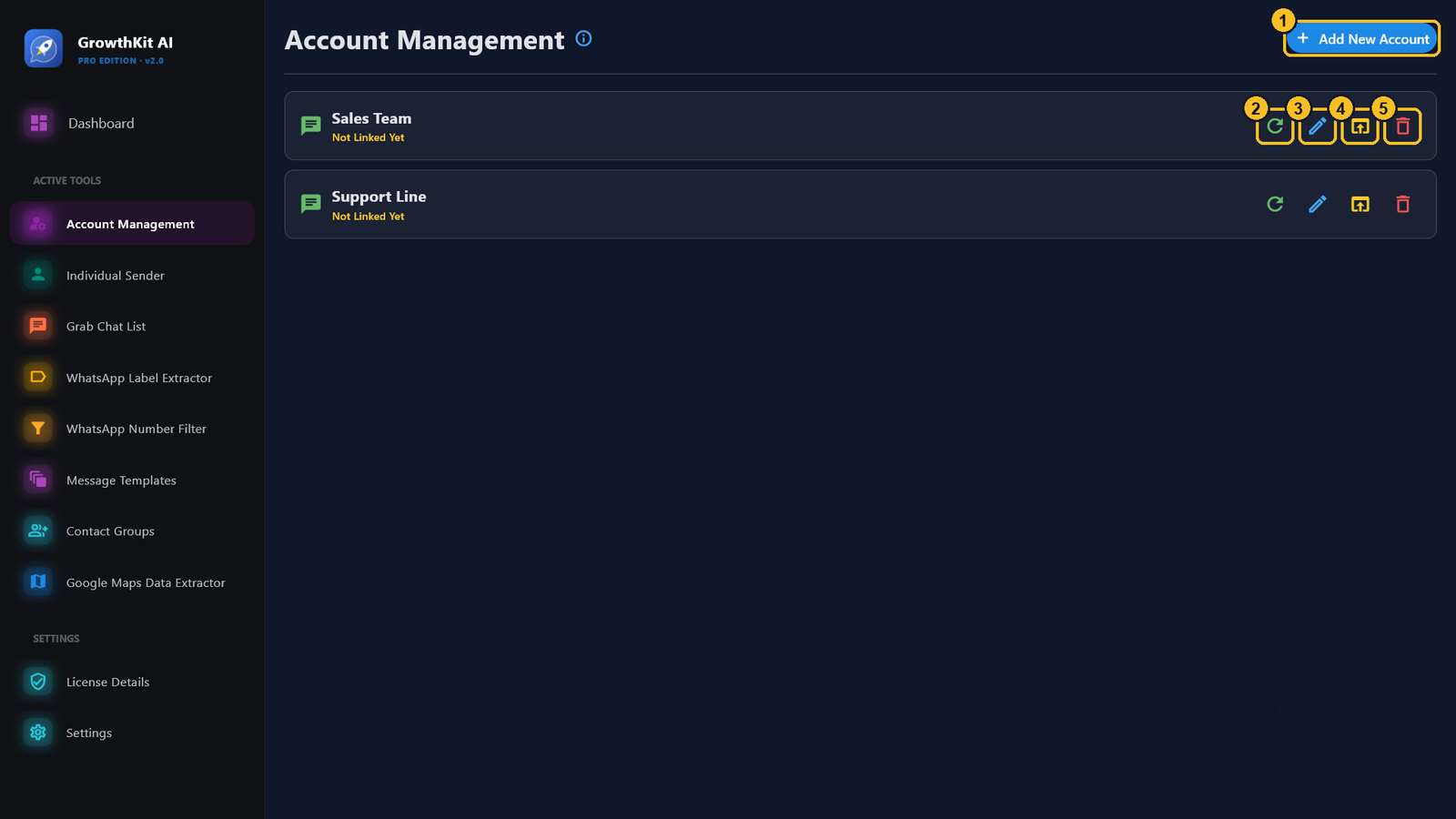
- Open Account Management and click Add New Account 1.
- Enter a name (for example: Marketing) and choose how to link it:
- QR Code: on the phone open WhatsApp → Linked devices → Link a device and scan the code.
- Phone Link (Code): enter the number with its country code, digits only. An 8-character code appears; on the phone choose Link with phone number instead and type it.
- External Browser: opens a visible browser window where you scan the code yourself.
- Wait for the success message. Linking stops after 5 minutes; you can try again.
| Button | What it does | |
|---|---|---|
| 1 | Add New Account | Links a new WhatsApp account. |
| 2 | Refresh Status | Checks that the account is still linked. |
| 3 | Rename Account | Changes the name shown in the app. |
| 4 | Open in Browser | Opens the account's WhatsApp Web in a visible window. |
| 5 | Delete Account | Logs the account out of WhatsApp and deletes its data from the computer. |
9Message Templates
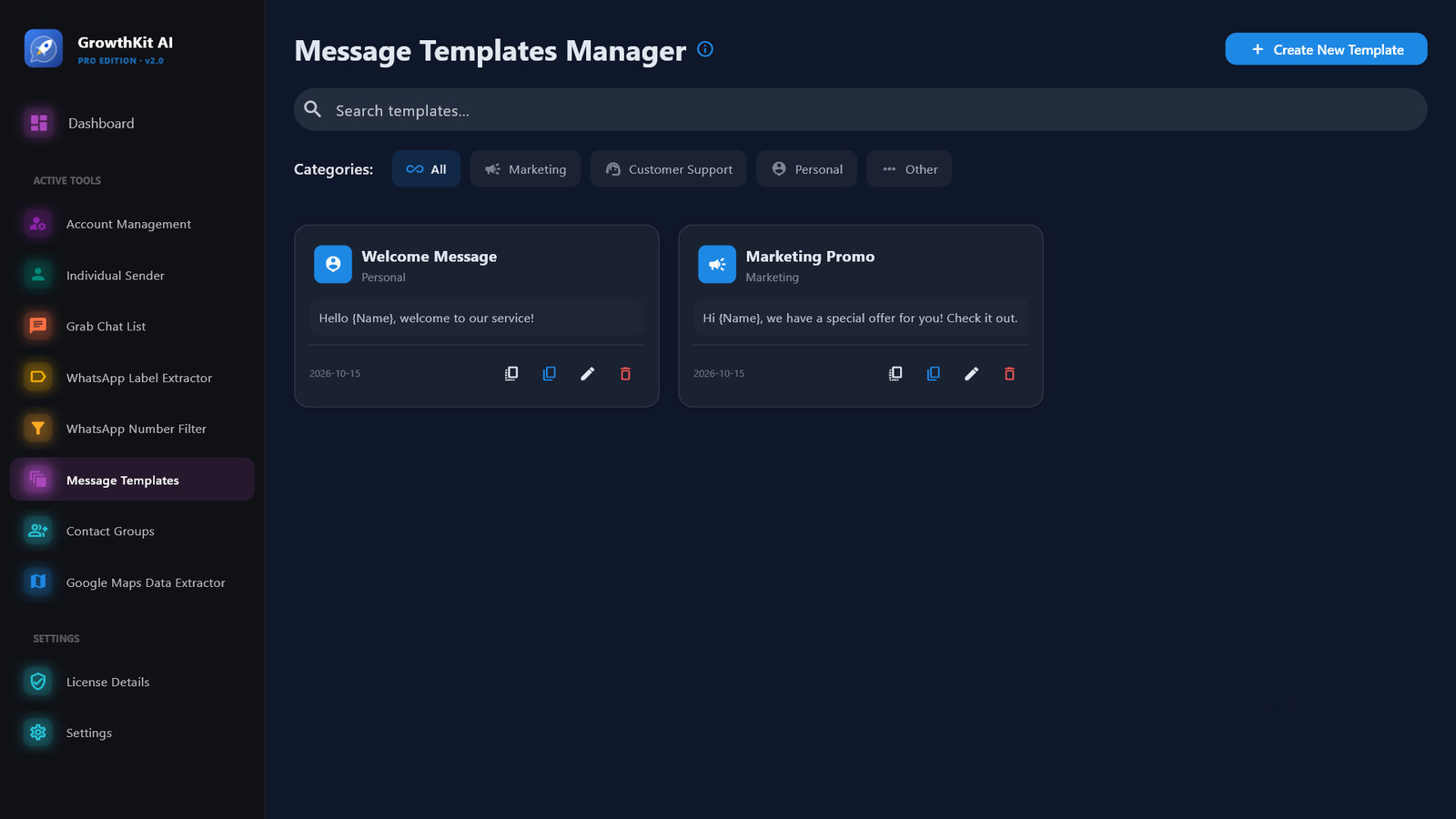
- Open Message Templates and click Create New Template.
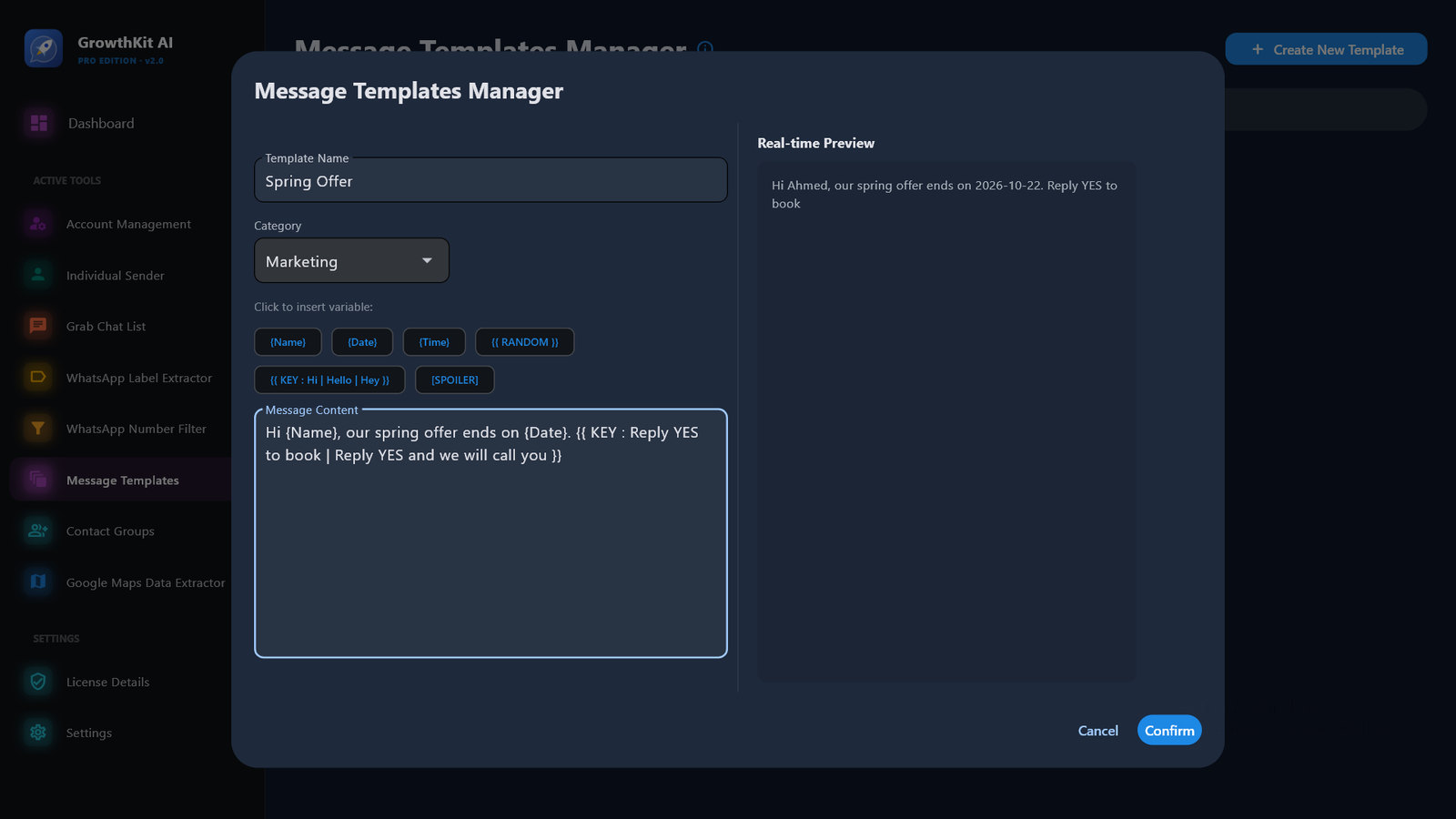
- Enter a name, a category and the message. Click a variable chip to insert it at the cursor; the preview shows the message for a sample contact.
- Save. In the Individual Sender, pick the template from Apply Message Template.
10Contact Groups
Groups are the phone lists used by the Sender and the Filter. Every tool that finds numbers can save them as a group.
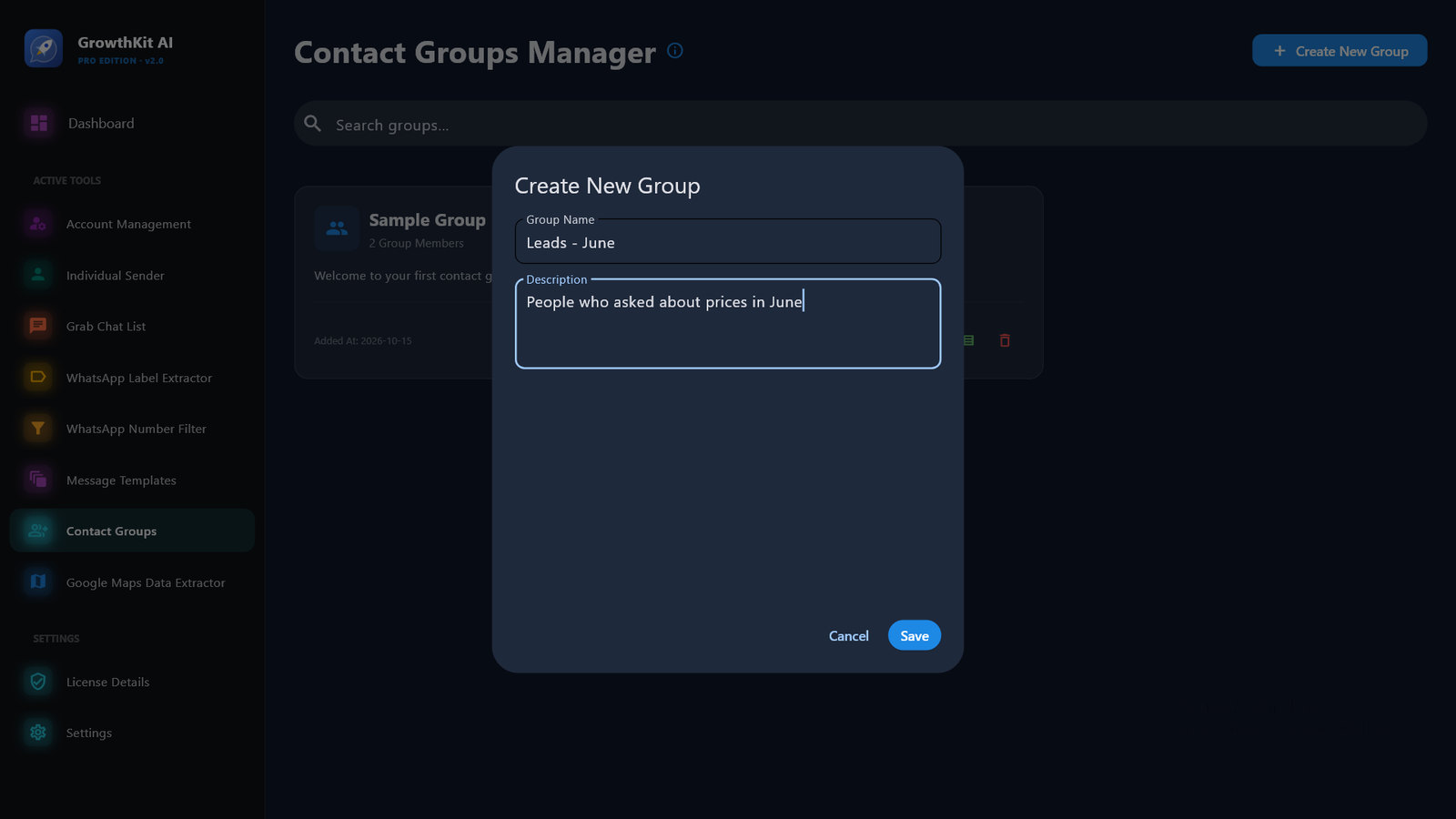
- Open Contact Groups, click Create New Group and enter a name and description.
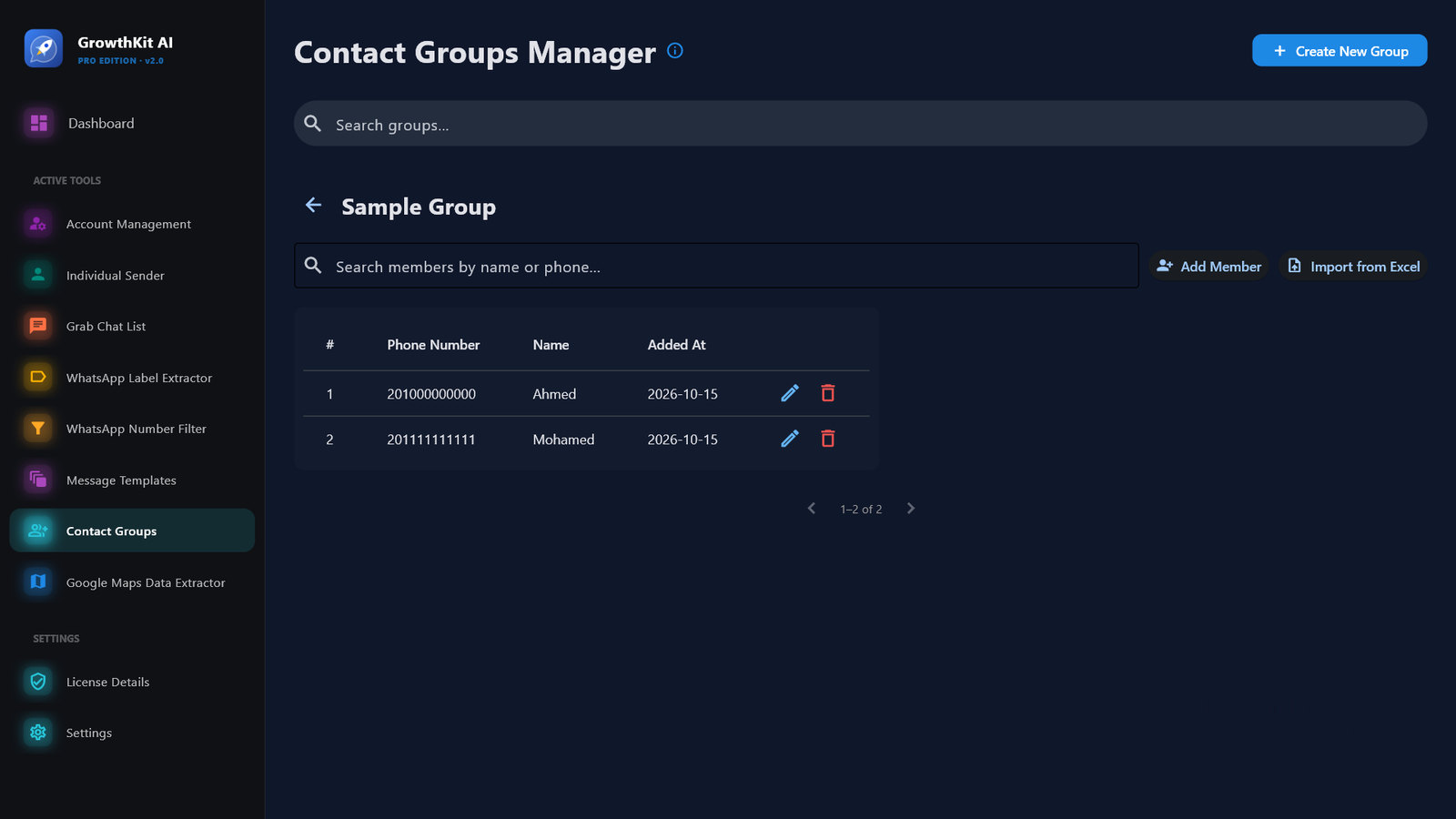
- Open the group and add members with Add Member, or Import from Excel (xlsx, xls or csv). The import shows a preview where you can pick the phone and name columns.
11Individual Sender
Sends a message to every number in the list, one by one, with random gaps between messages.
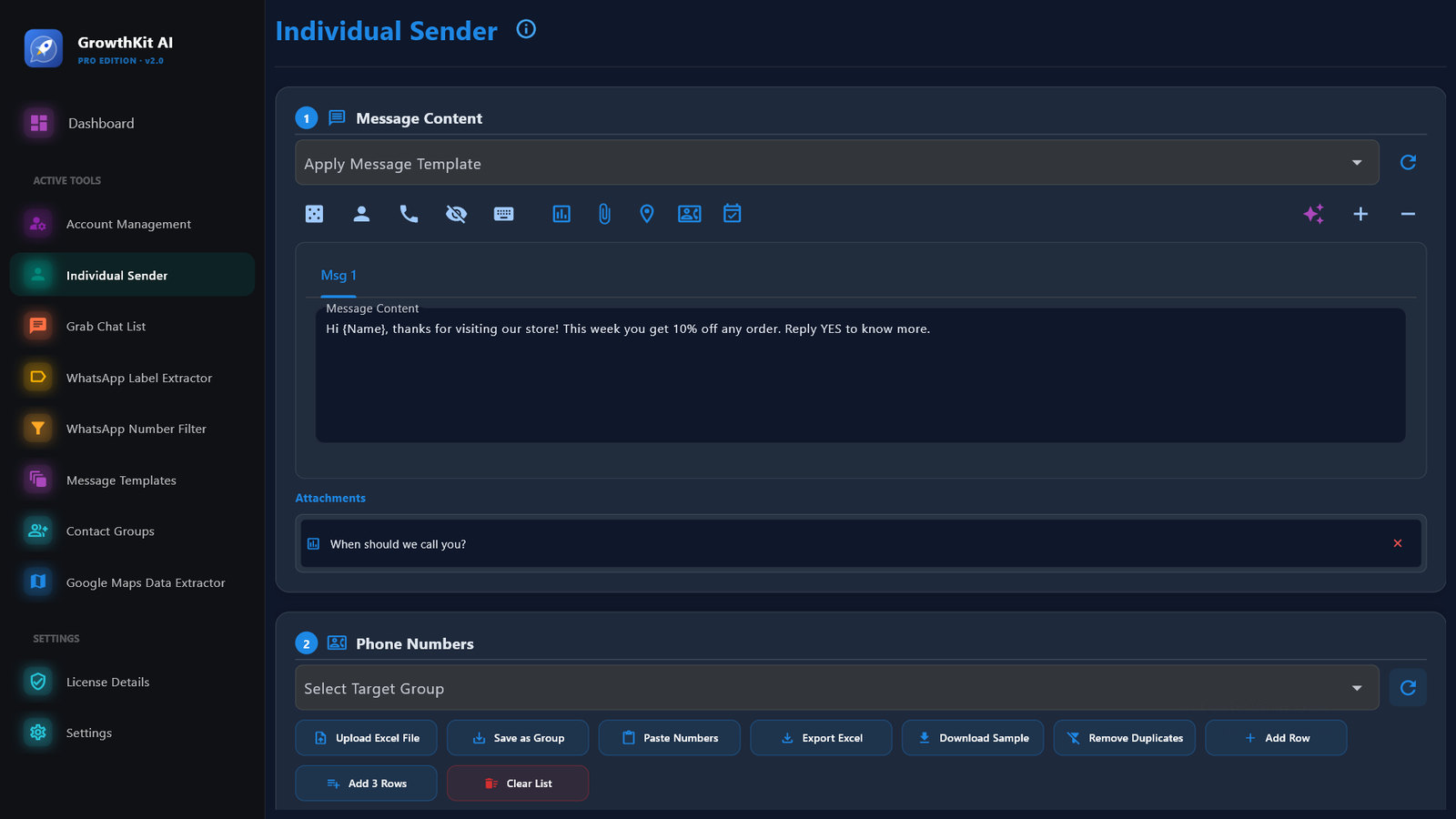
Step 1: the message
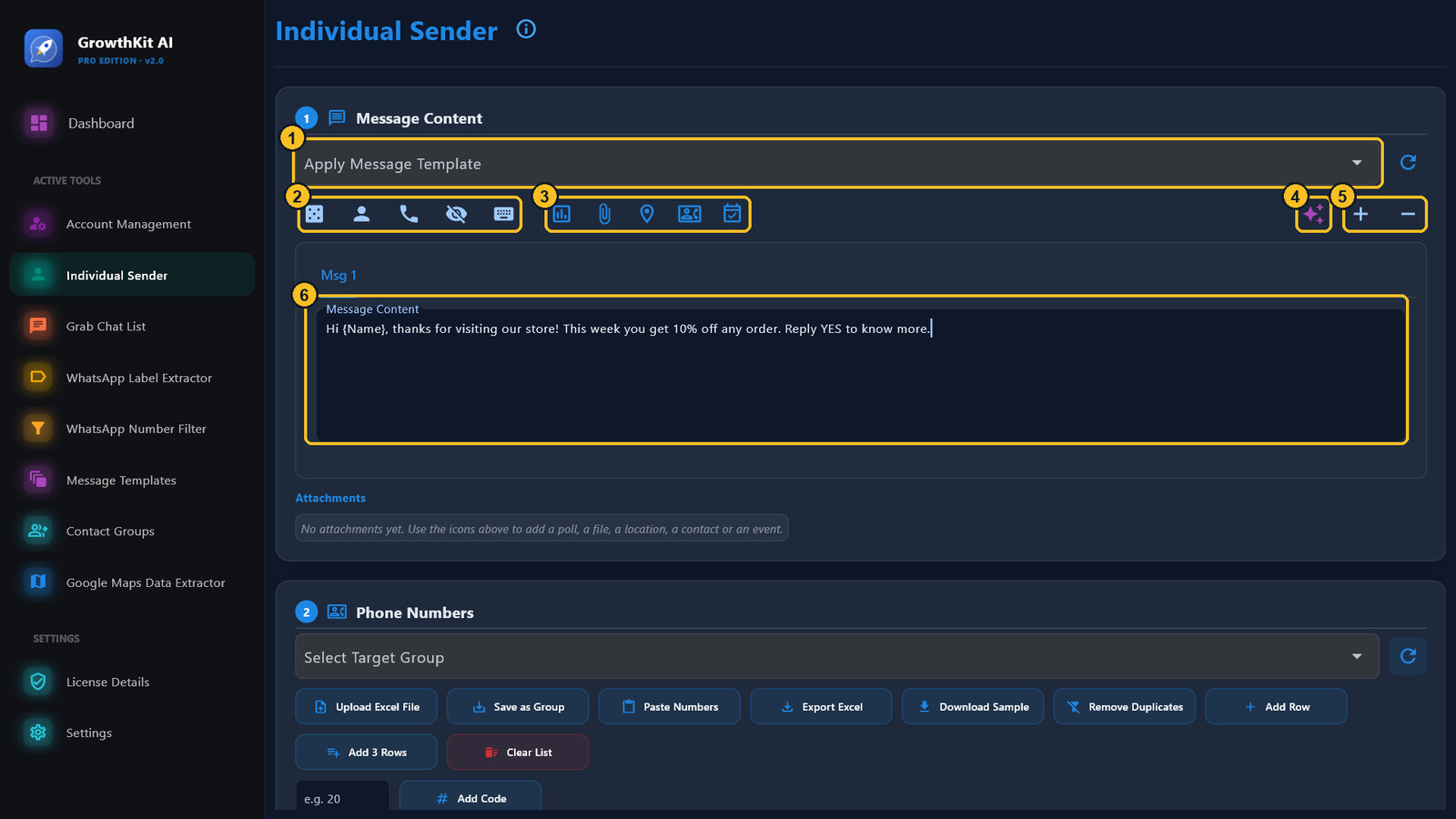
- Pick a saved template 1, or write the message 6.
- Insert variables from the toolbar 2: Random, Name, Phone, Spoiler and Key Marker (see Variables).
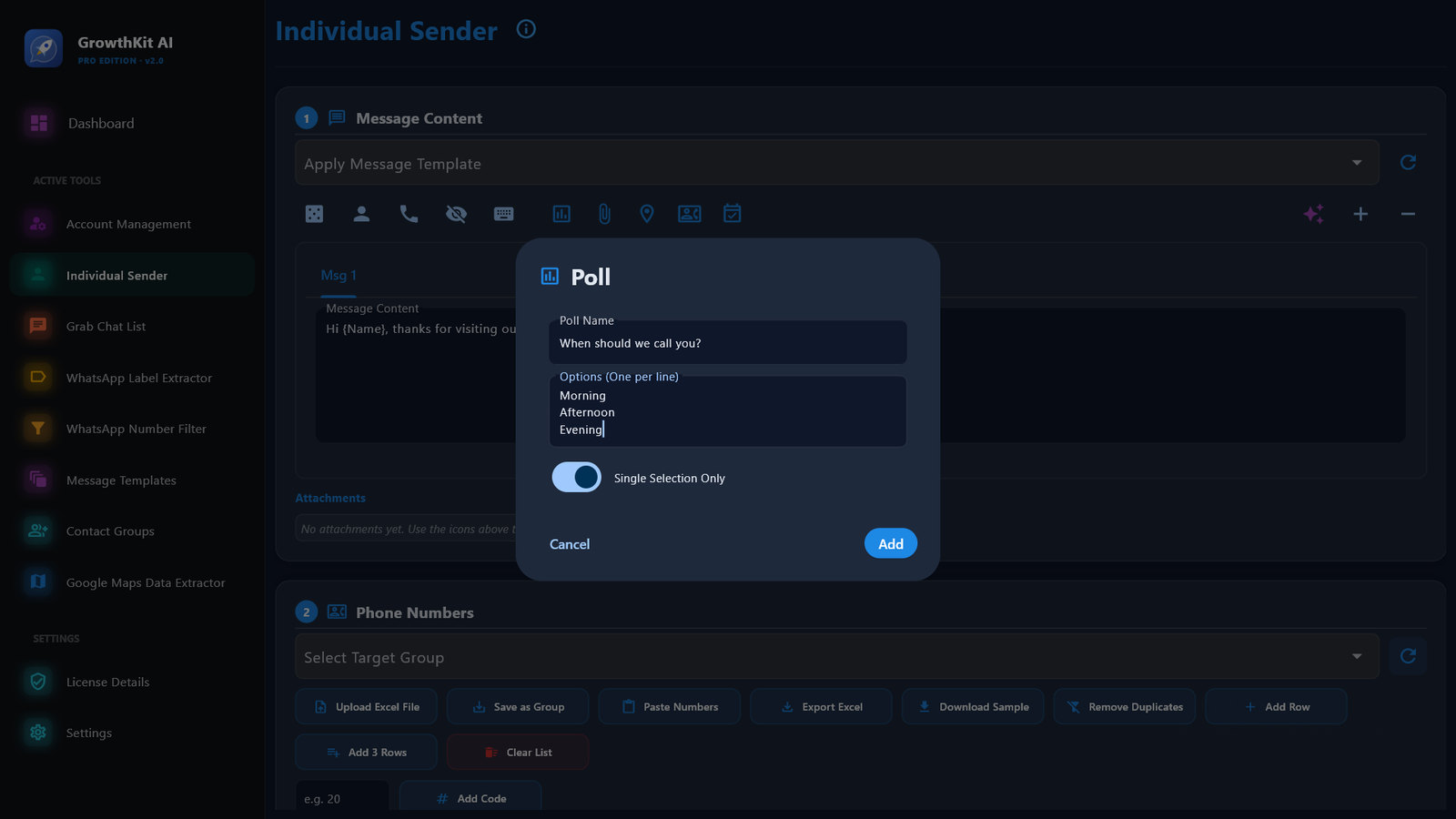
- Add attachments 3: Poll, Media (image, video, file, sticker, voice note), Location, Contact or Event. They are sent with every message.
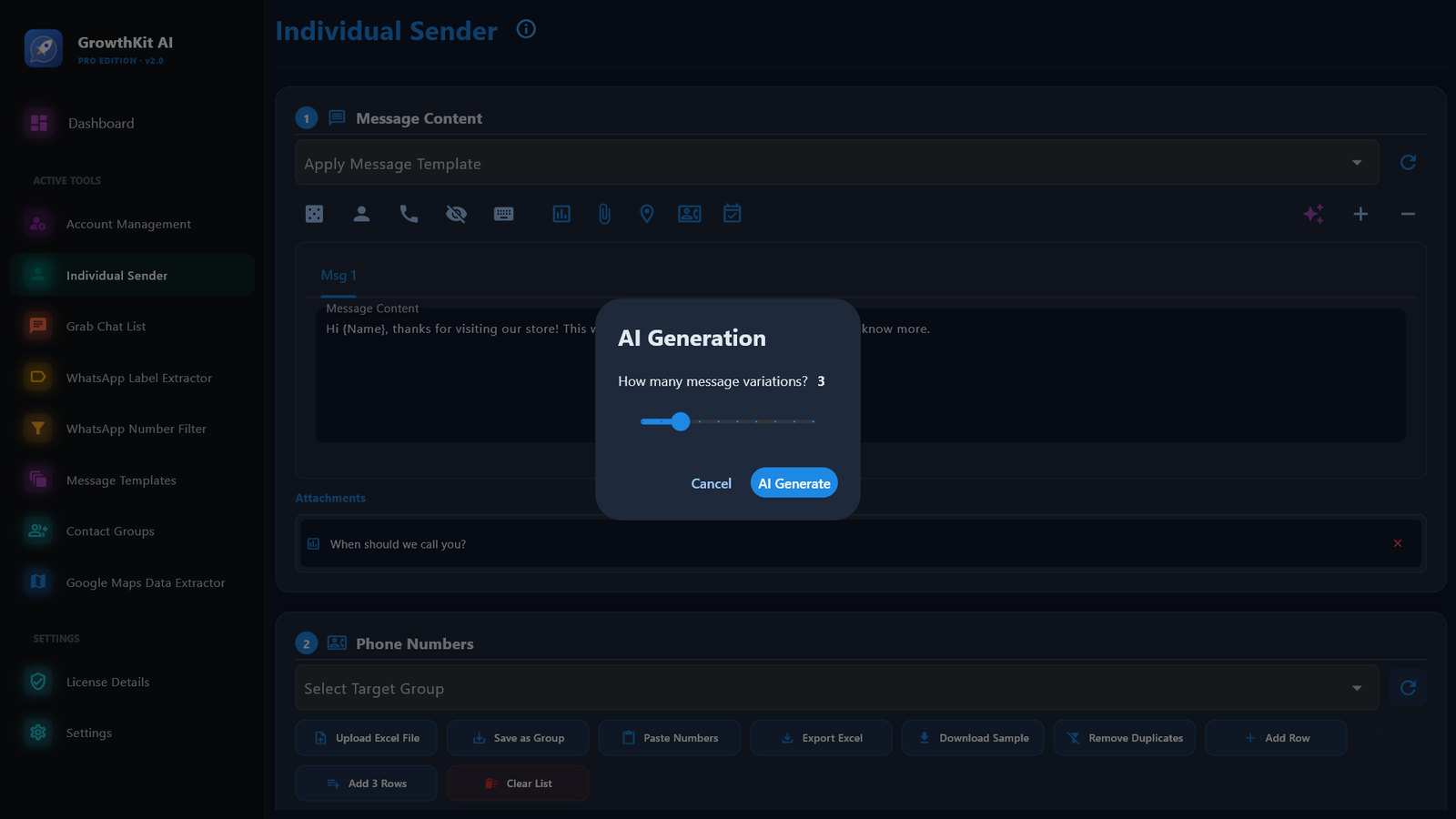
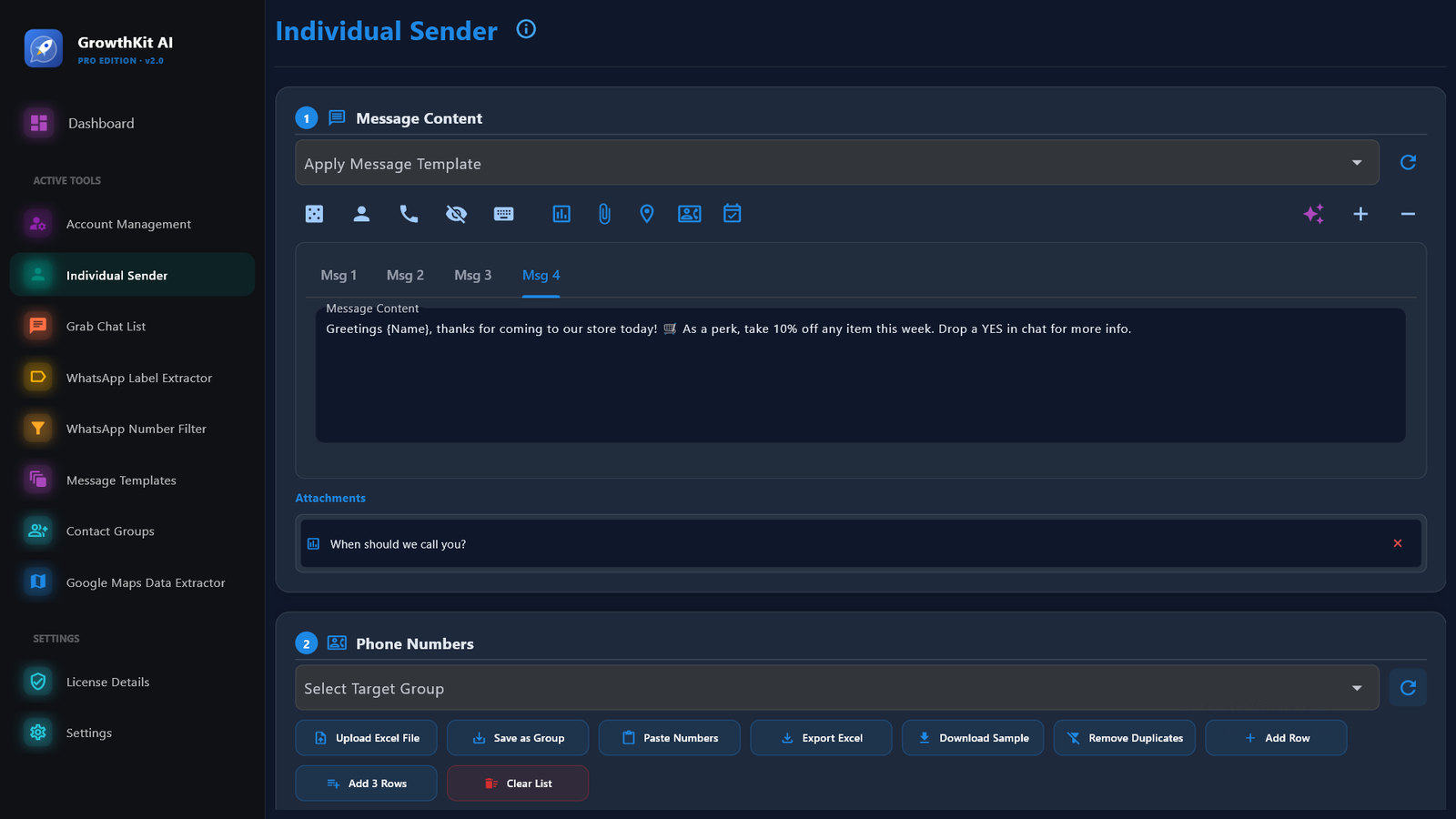
- Optional: AI Generate 4 writes several versions of your message, and 5 adds or removes a version tab. Versions are sent in turn: the first number gets version 1, the second version 2, and so on.
Step 2: the numbers
- Choose a saved group in Select Target Group, or use Upload Excel File or Paste Numbers. Download Sample gives an example Excel file; any extra column can be used as a variable.
- For local numbers, type the country code and click Add Code. Remove Duplicates cleans the list.
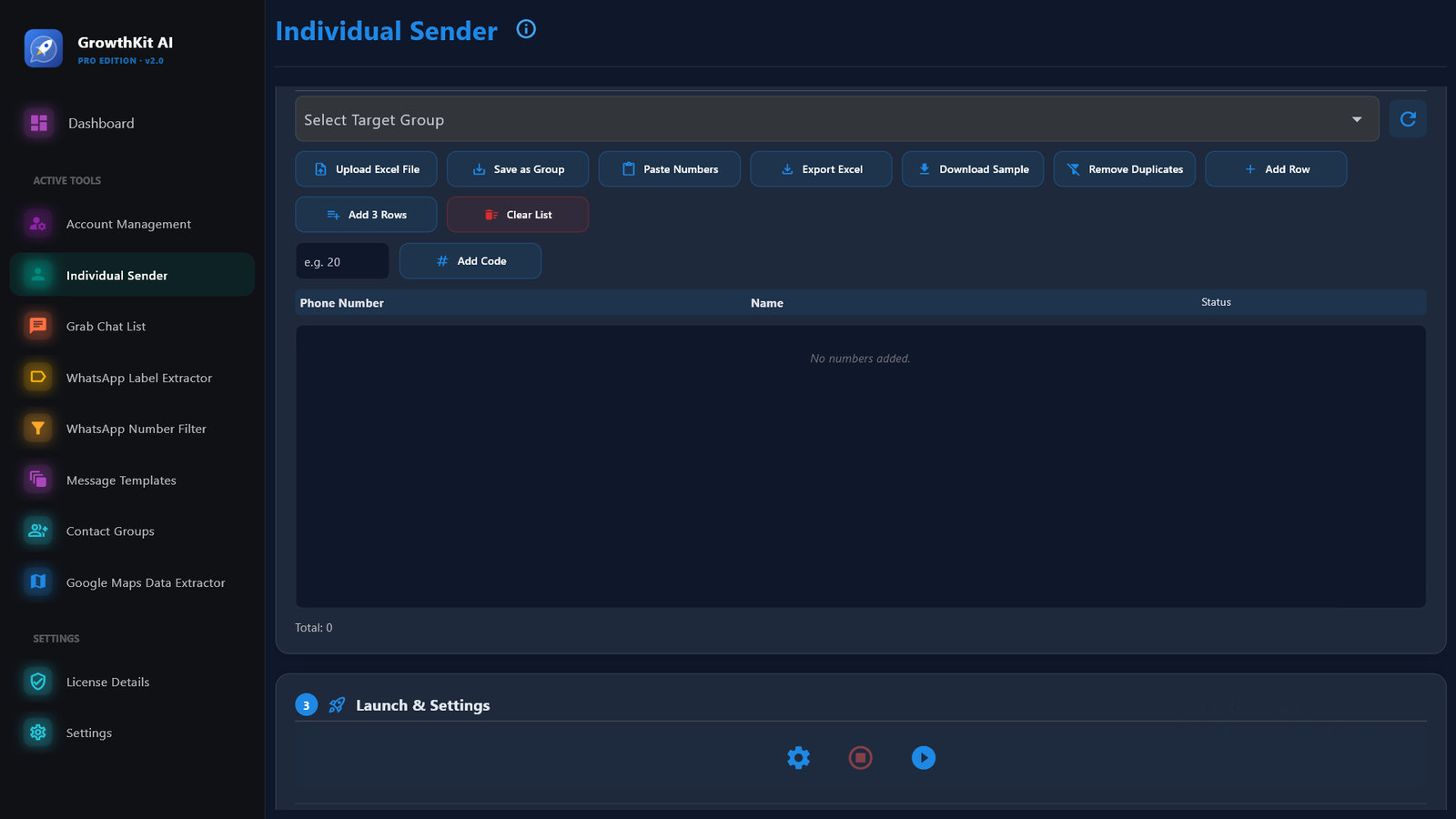
Step 3: settings and launch
- Click Settings 1 and choose the account.
- Click Start 3. Stop 2 stops at once, even during a wait. Progress appears in the console 4 and each number's status in the table.
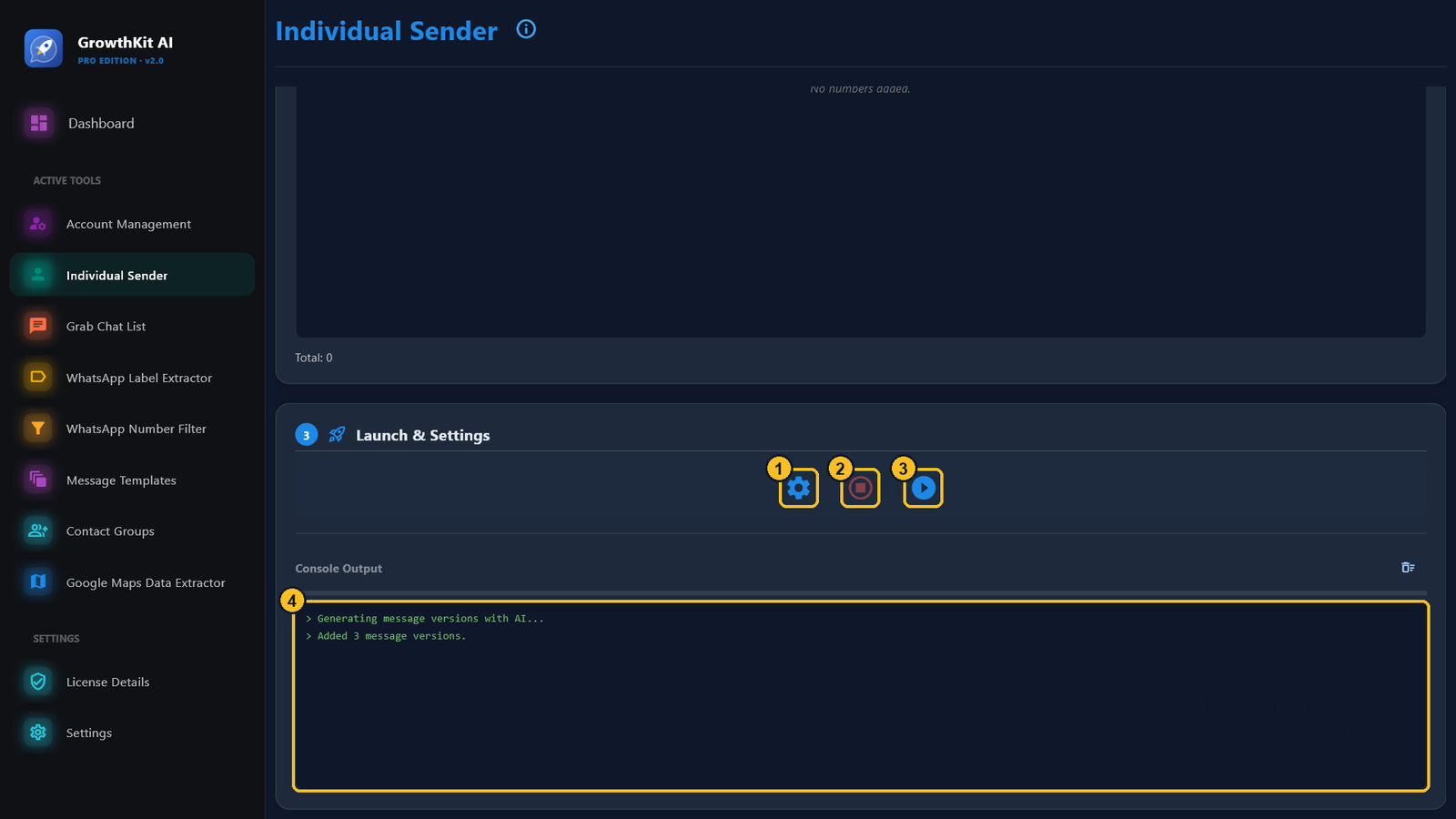
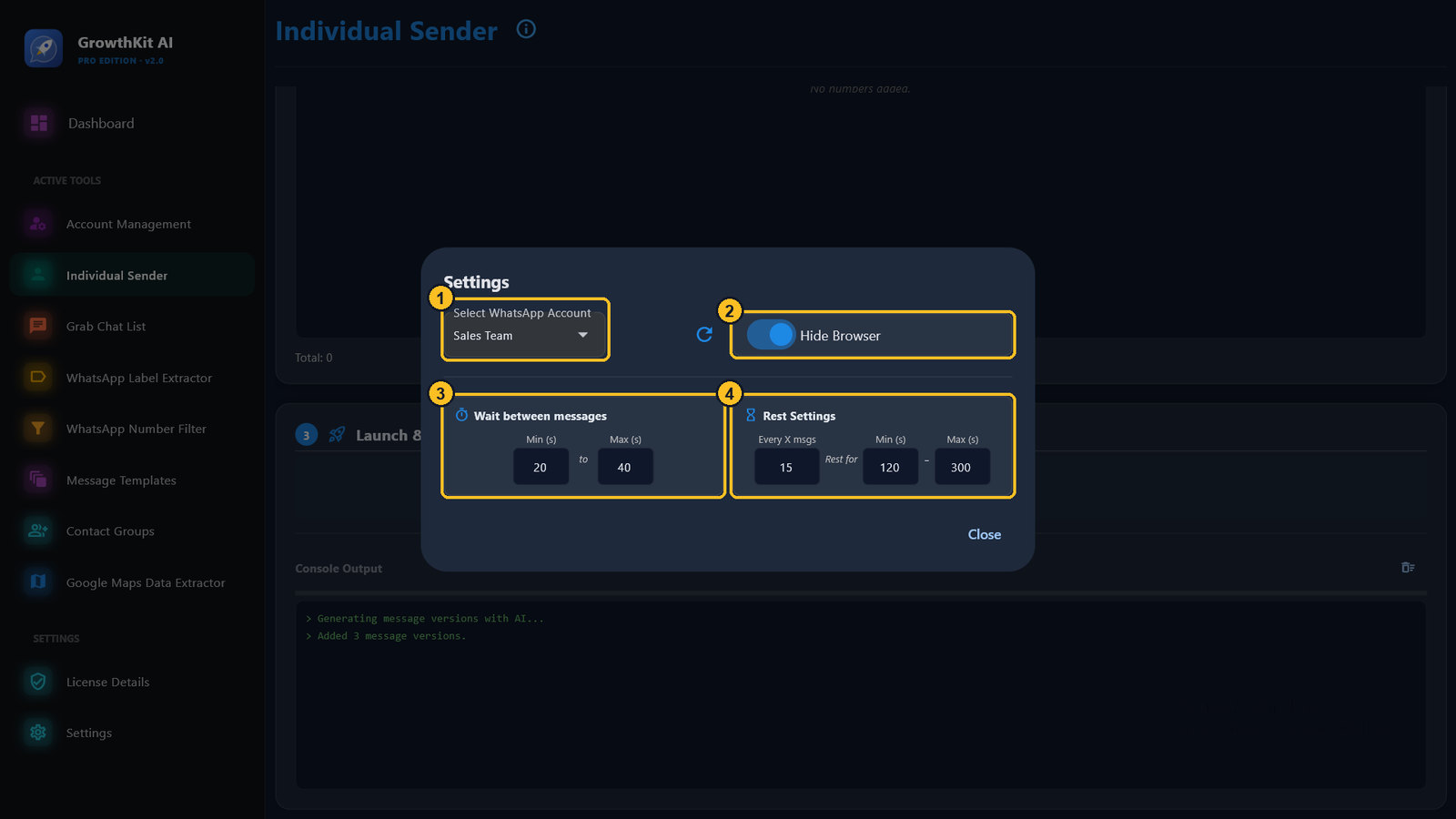
| Setting | Default | Meaning | |
|---|---|---|---|
| 1 | Select WhatsApp Account | — | The account that sends. |
| 2 | Hide Browser | On | Runs the browser in the background. |
| 3 | Wait between messages | 20–40 s | A random gap before each message. |
| 4 | Rest Settings | 120–300 s every 15 | A longer pause after every X messages. |
At the end, a message shows how many were sent, failed and skipped; export the table with Export Excel. If you run the same list again, the app asks whether to skip the numbers that already got the message.
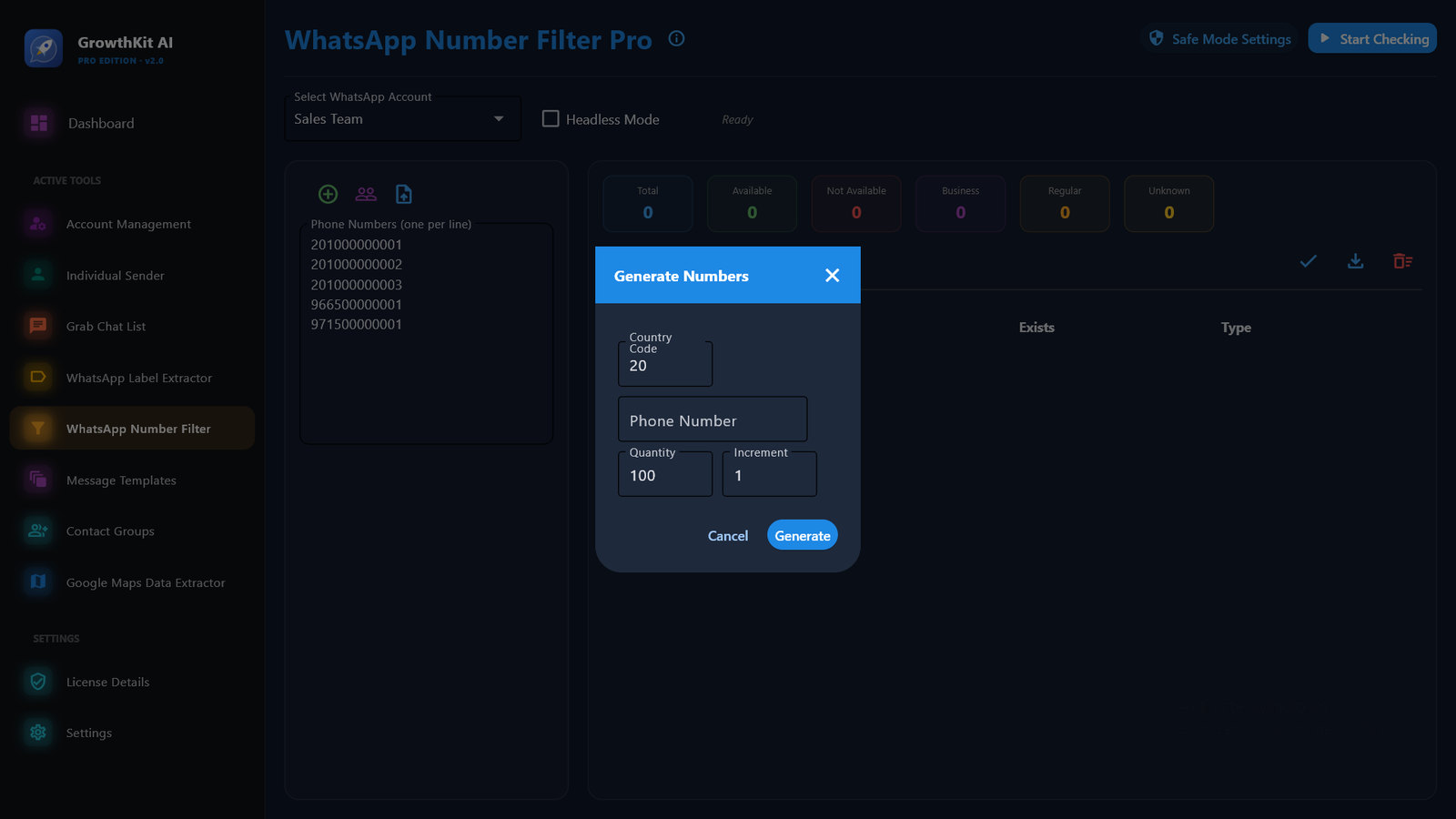
12WhatsApp Number Filter
Shows which numbers have WhatsApp, and which are business accounts, before you send.
- Choose the account. Type or paste the numbers (one per line), or load them from a file or a group.
- Click Start Checking. The counters show Available, Not Available, Business, Regular and Unknown.
- Export with Export Excel, or keep the valid numbers with Save Selected to Contact Group.
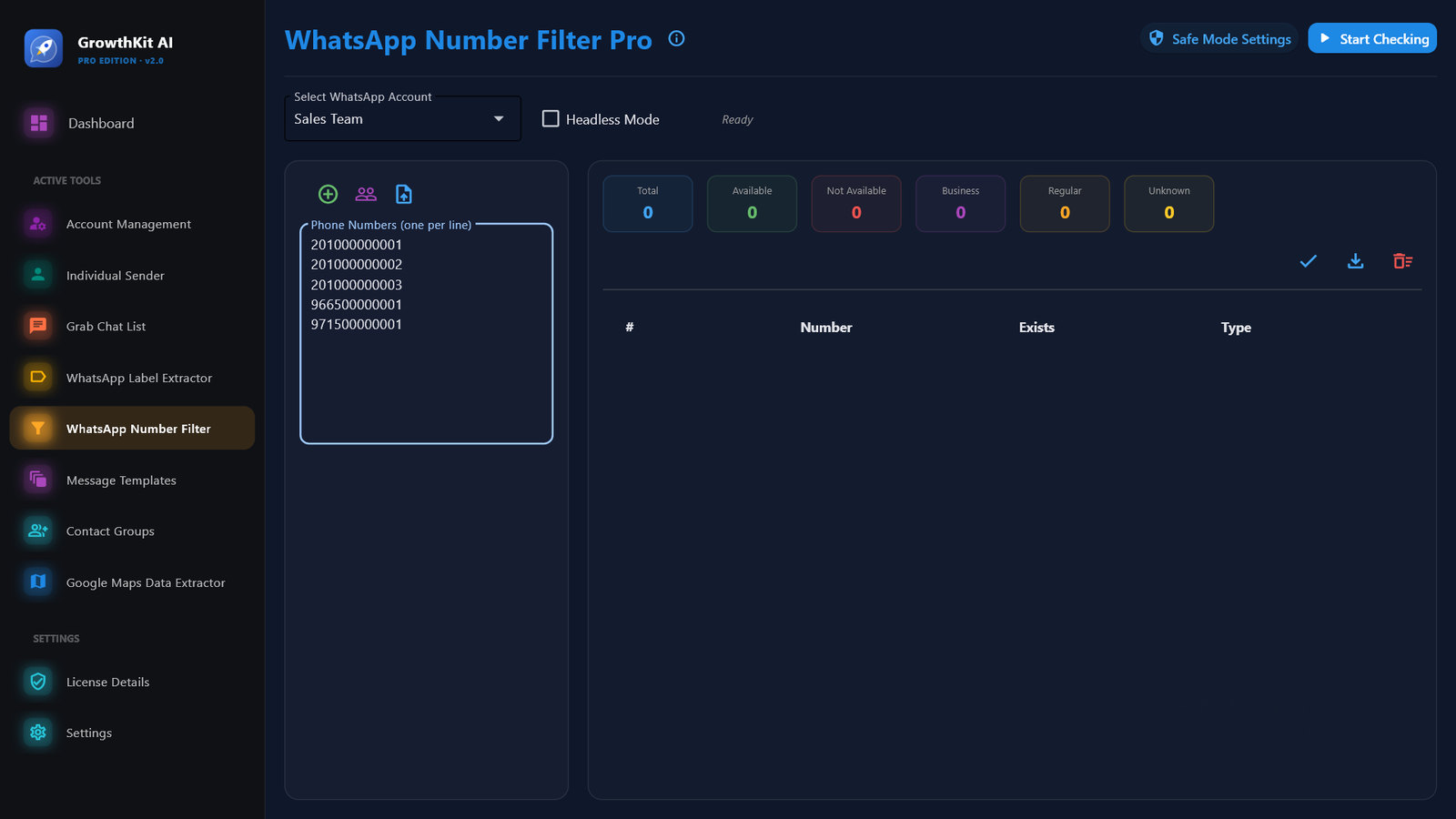
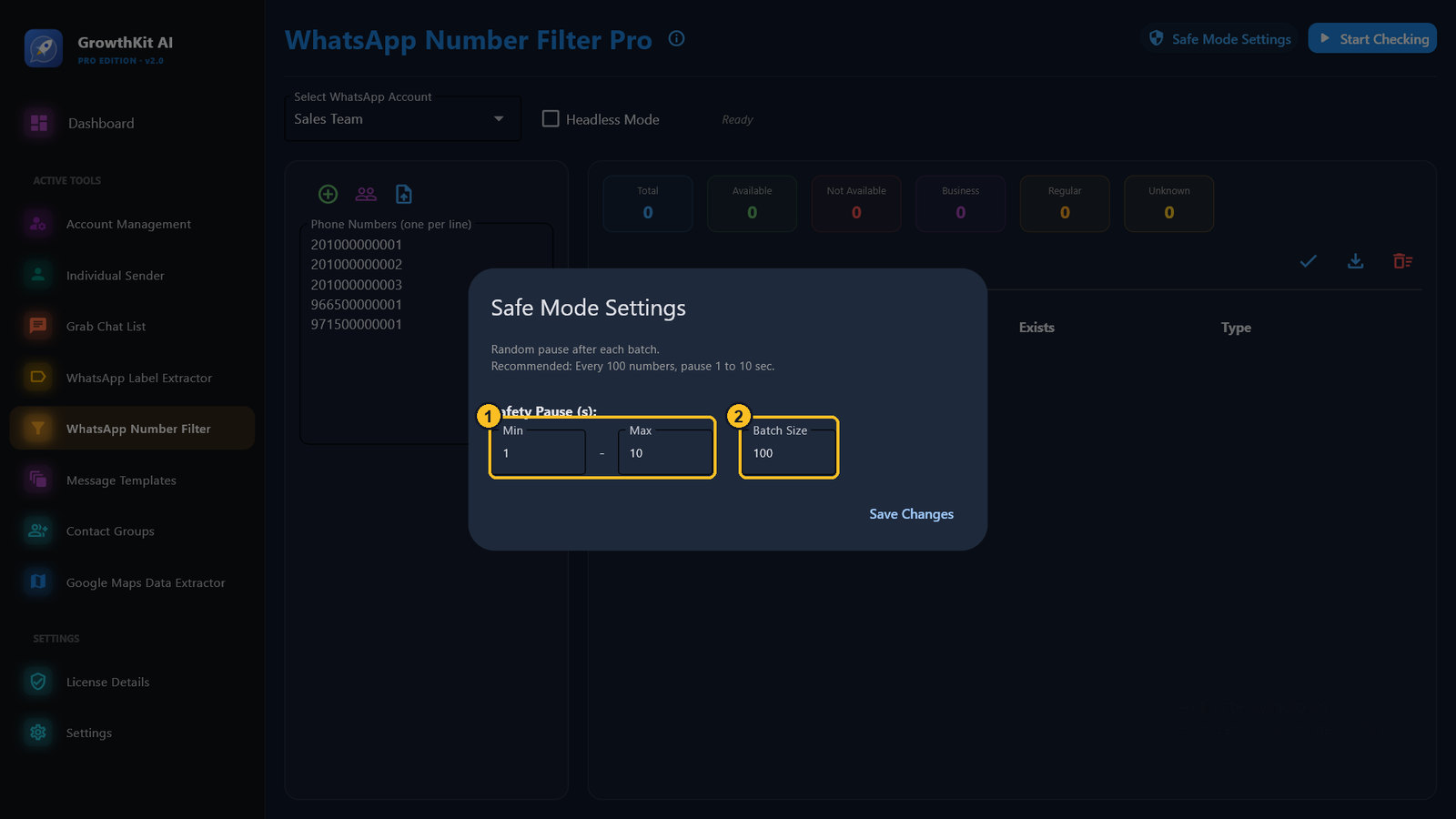
Safe Mode Settings: after every batch of numbers 2 (default 100), the app pauses for a random time between Min and Max seconds 1 (default 1–10 s). Numbers must be in international form, with the country code.
Generate Numbers makes a list in sequence from a country code, a starting number, a quantity and a step.
13Grab Chat List
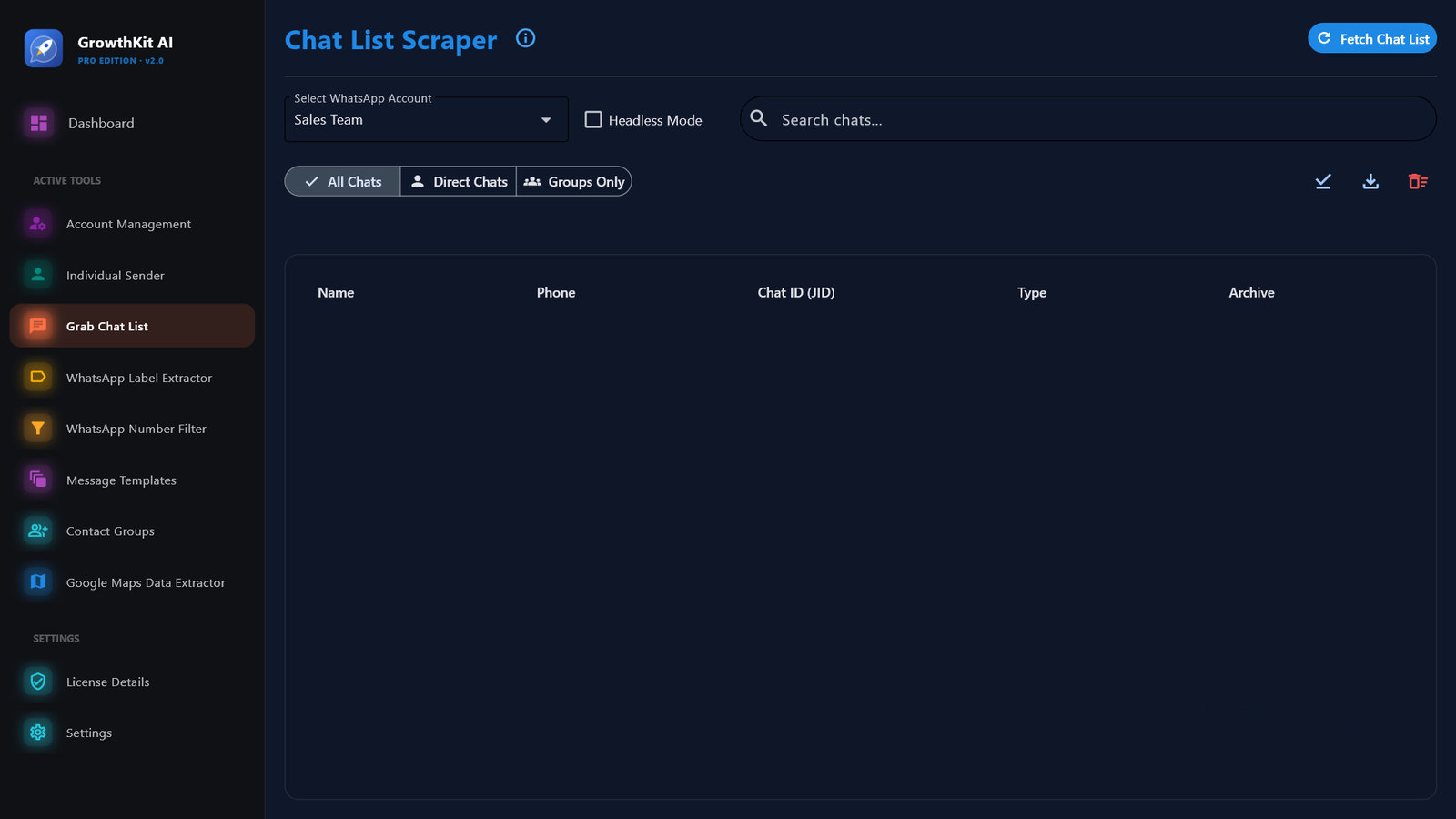
- Choose the account and click Fetch Chat List.
- All chats appear with their type: person, group, channel or broadcast list.
- Use Export to Excel, or Save Selected to Contact Group.
14WhatsApp Label Extractor
For WhatsApp Business accounts that use labels such as "New customer" or "Paid".
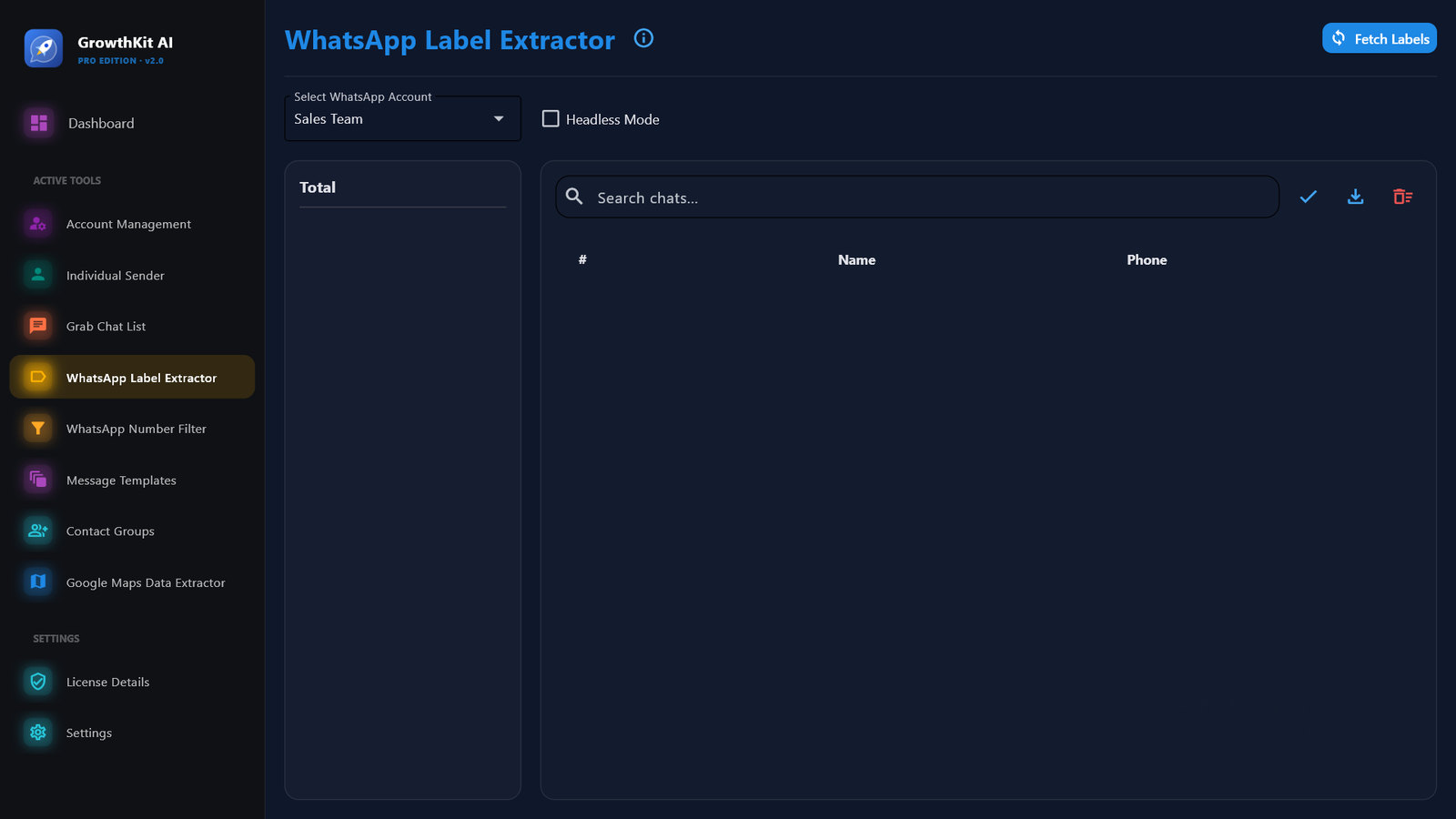
- Choose the account and click Fetch Labels.
- Each label appears with its chats. A chat with two labels appears under both.
- Export a label to Excel, or save it as a contact group.
15Google Maps Data Extractor
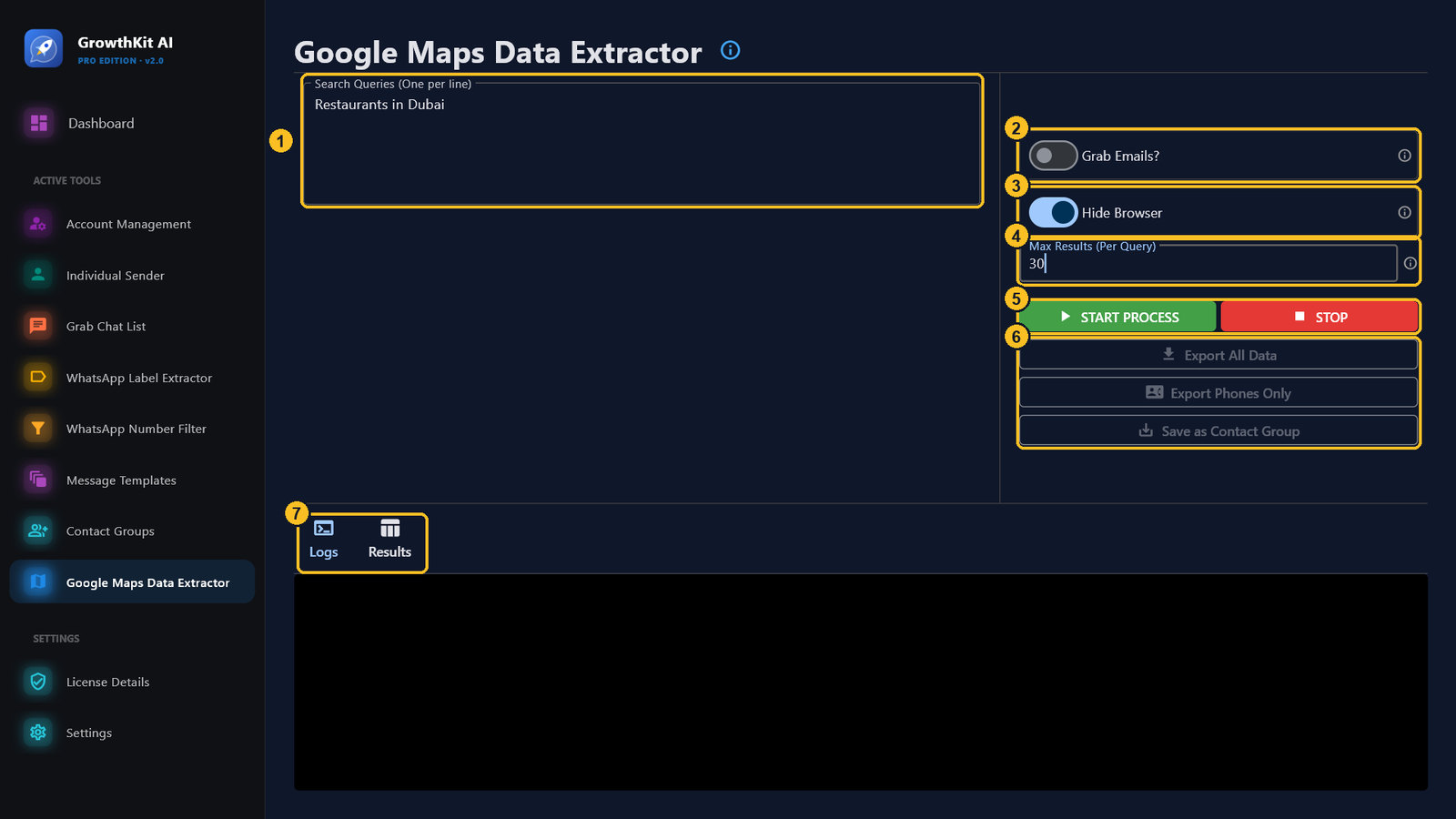
- Write one search per line 1, for example Restaurants in Dubai.
- Choose the options 2–4 (table below) and click START PROCESS 5.
| Item | Meaning | |
|---|---|---|
| 2 | Grab Emails? | Also opens each place's website to look for an email. Slower. |
| 3 | Hide Browser | Runs the browser in the background (default on). |
| 4 | Max Results (Per Query) | Default 0, which means all results. When a search runs out of places, the app continues in the surrounding area. |
| 5 | START PROCESS / STOP | Starts or stops the extraction. |
| 6 | Export All Data / Export Phones Only / Save as Contact Group | Saves the results. |
| 7 | Logs / Results | Progress messages, and the results table. |
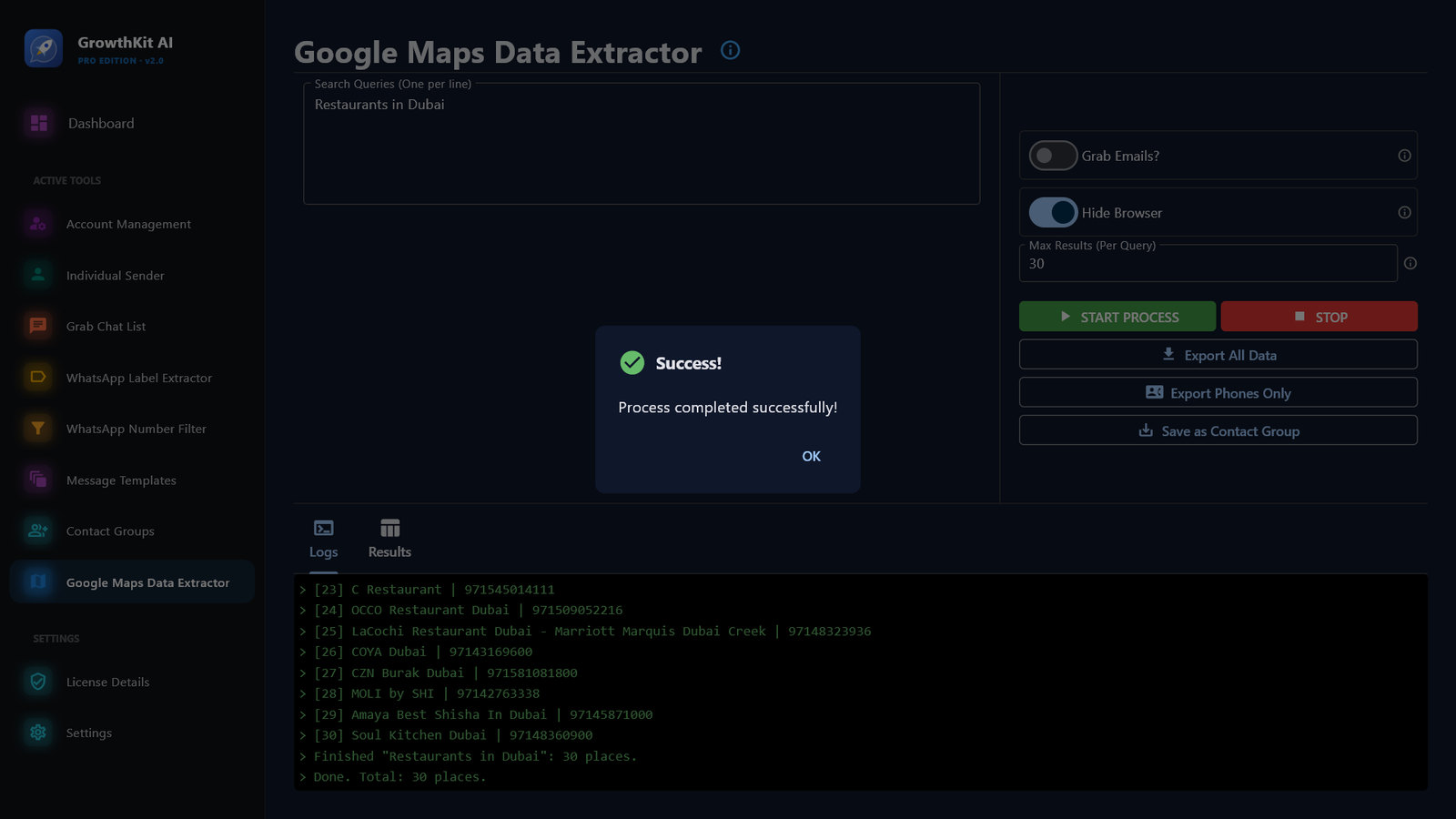
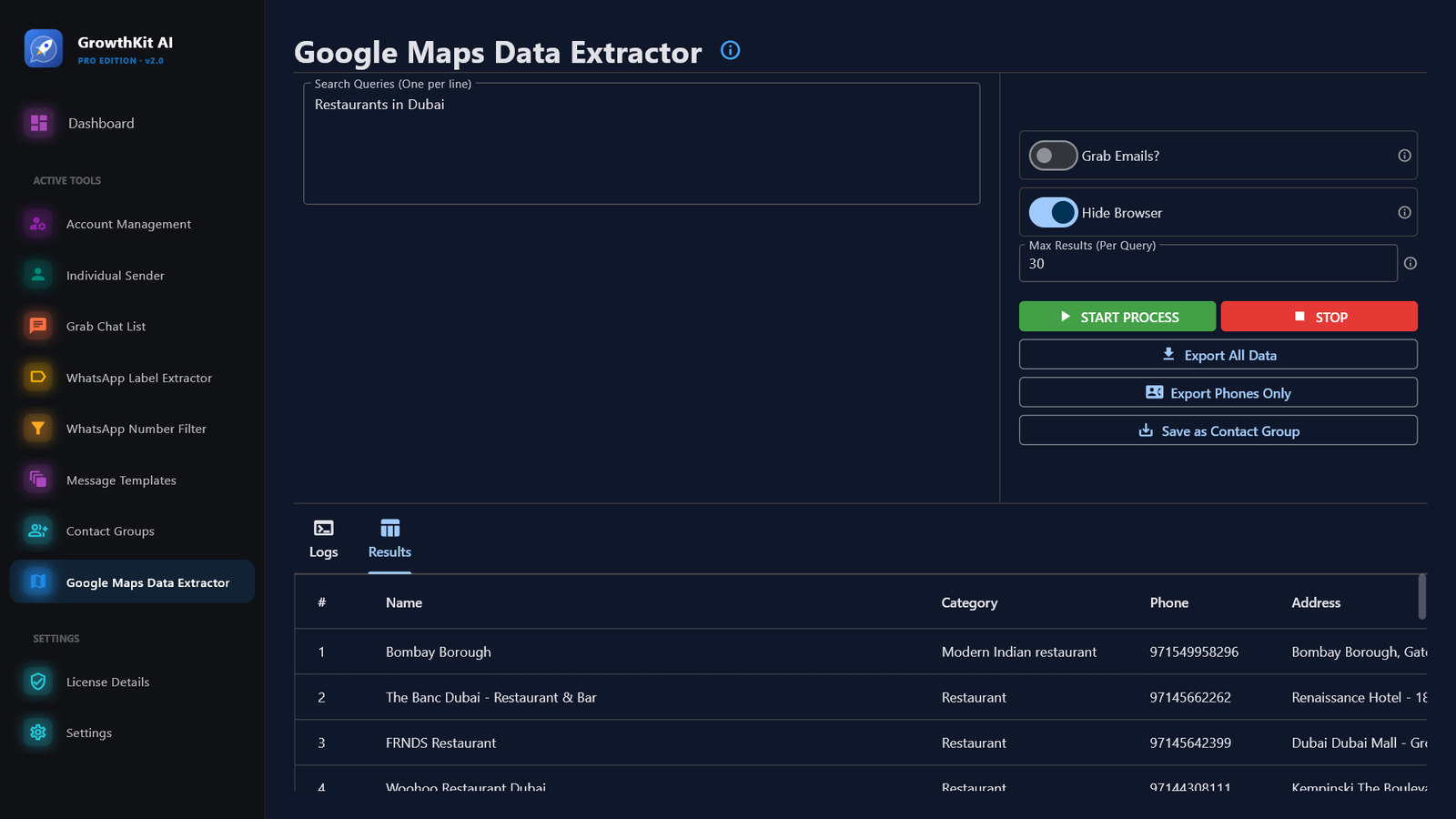
Each place has its name, category, phone, address, website, rating, number of reviews, Maps link and coordinates (and email if chosen). Results are also saved while the app works to Documents\GrowthKit AI\Results as a CSV file.
16Variables
Variables work in the Individual Sender and in Message Templates. Upper and lower case are the same.
| Variable | Becomes |
|---|---|
{Name} or {{NAME}} | The person's name. Empty if there is none. |
{Phone} or {{PHONE}} | The person's number. |
{Date} or {{DATE}} | Today's date, like 2026-01-31. |
{Time} or {{TIME}} | The current time, like 14:05. |
{{RANDOM}} | A random 5-digit number, different in each message. |
{{KEY: Hi | Hello | Hey}} | One of the options, picked at random. Options may contain variables. |
{{SPOILER}} | Hides what follows behind WhatsApp's "Read more". |
{Any column} | Any column of your Excel file, like {City}. |
Example: {{KEY: Hi | Hello}} {Name}, today's offer ends at {Time}!
17Settings and license
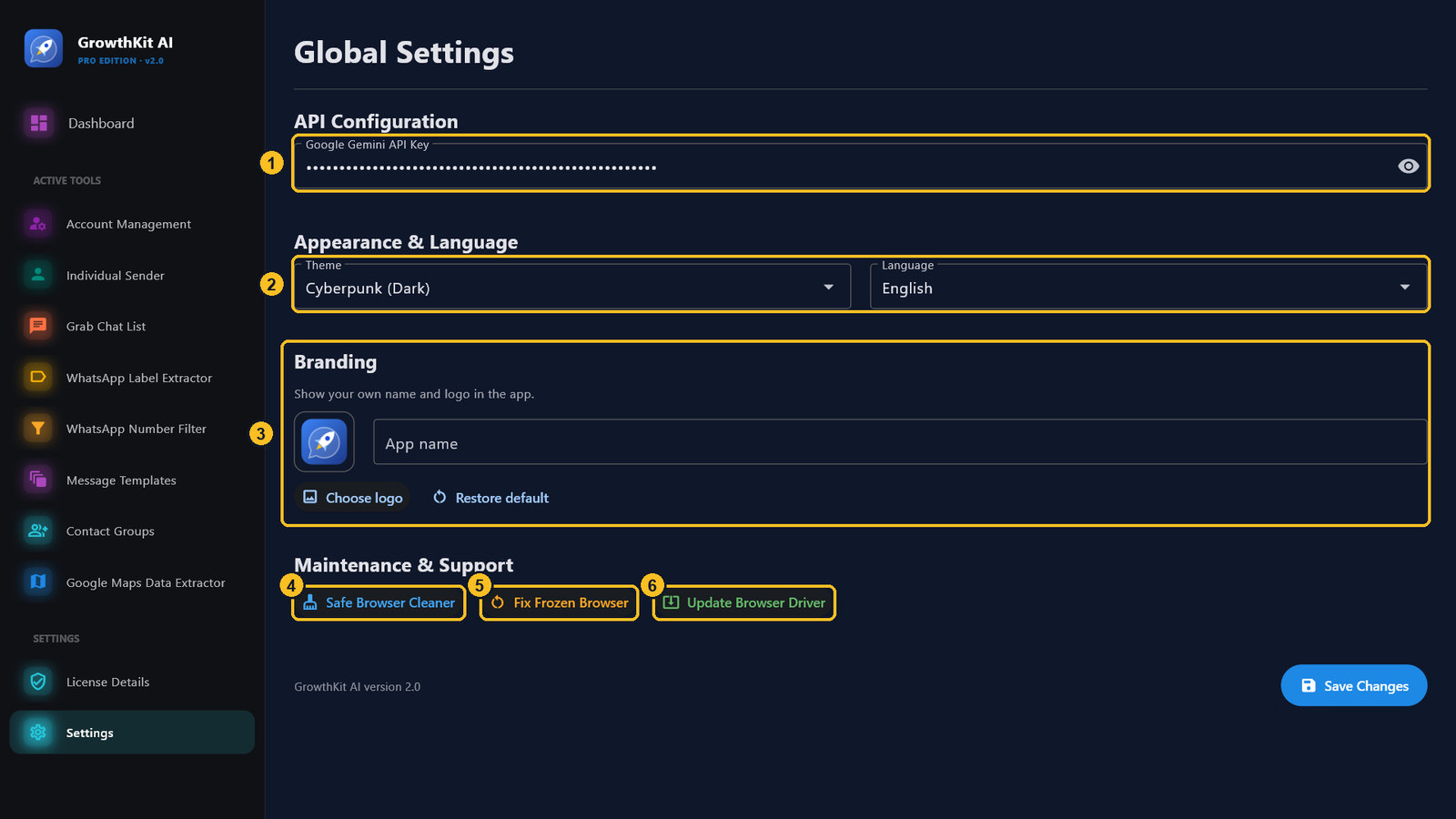
| Item | What it does | |
|---|---|---|
| 1 | Google Gemini API Key | Needed only for AI Generate. Get one free at aistudio.google.com. |
| 2 | Theme / Language | The app's look and language. Click Save Changes. |
| 3 | Branding | Show your own name and logo in the app (see Logo, colors and languages). |
| 4 | Safe Browser Cleaner | Clears temporary browser files if things get slow. Accounts stay linked. |
| 5 | Fix Frozen Browser | Use it when the browser won't open or says the account is open in another window. Closes GrowthKit's browsers only. |
| 6 | Update Browser Driver | Use it if the browser stops opening after Chrome updates (needs internet). |
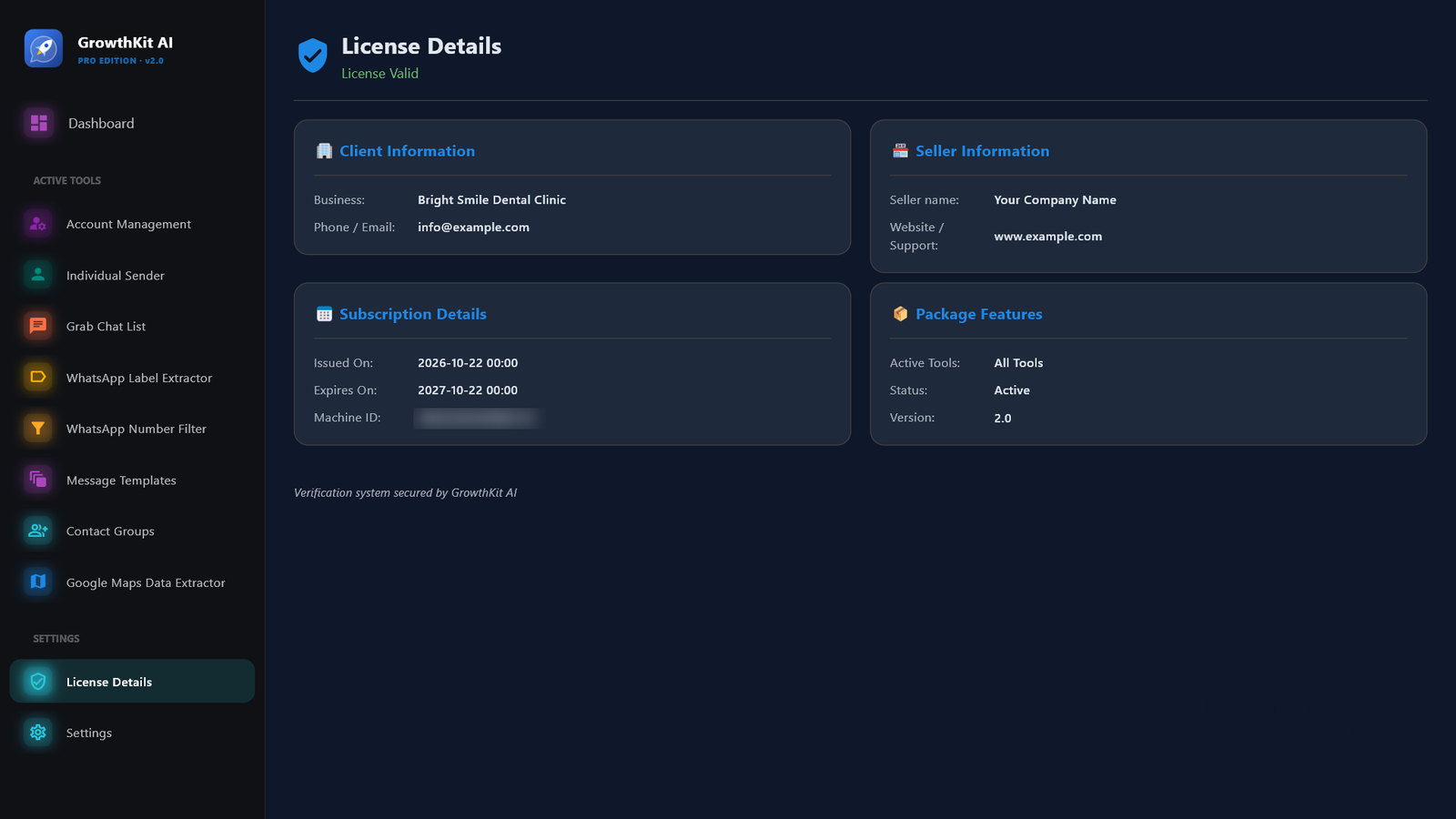
License Details shows the license owner, the seller, the dates, the enabled tools and the version.
18Logo, colors and languages
There are two ways to make the app your own. Change the name and logo from Settings, with no code and no rebuild. Or change the logo, colors, themes and texts in the source code, then rebuild the installers.
Name and logo from Settings (no code)
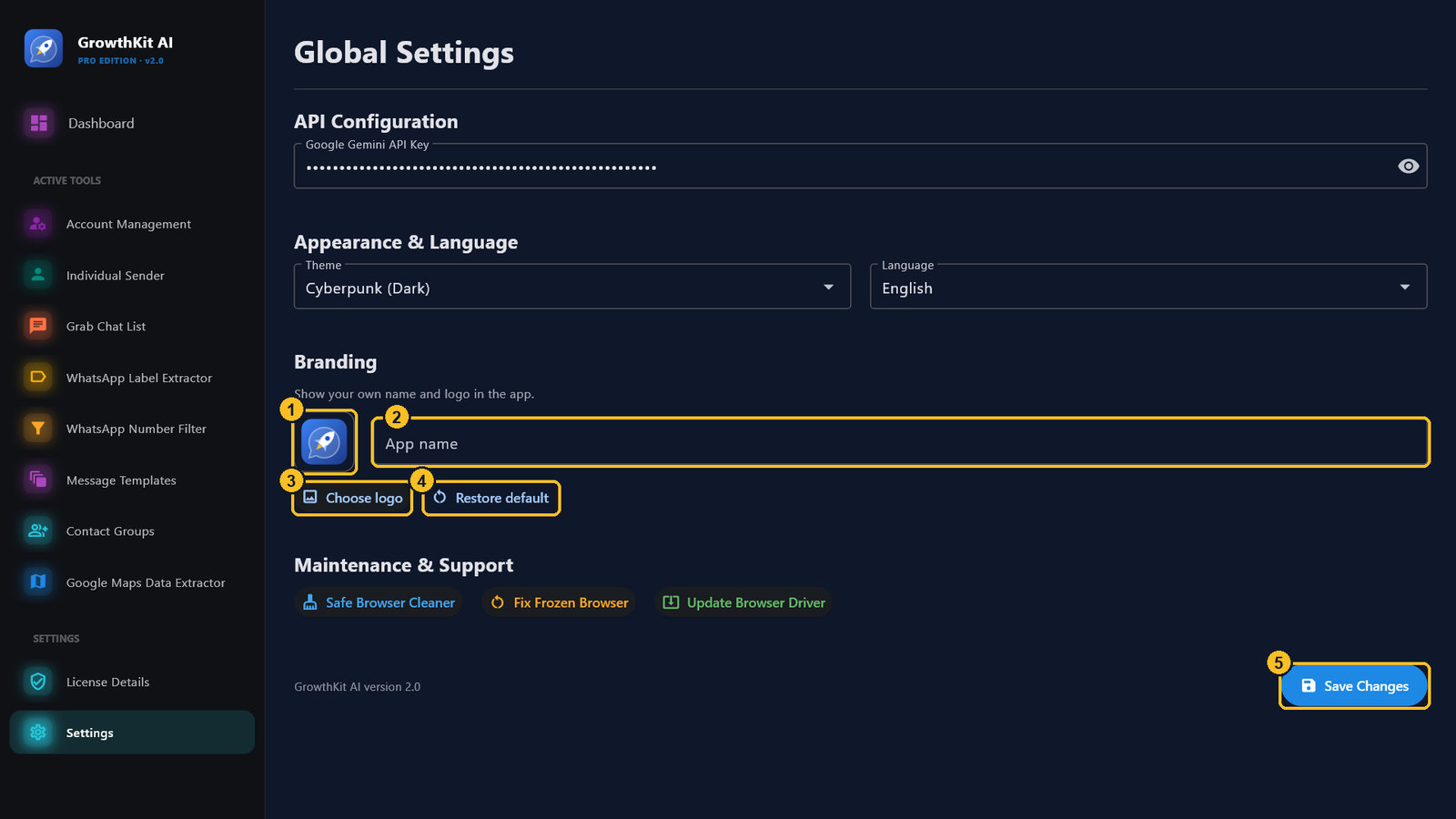
| Item | What it does | |
|---|---|---|
| 1 | Logo preview | The logo the app shows now. |
| 2 | App name | Your name, up to 40 characters. Leave it empty to use the default name. |
| 3 | Choose logo | Pick a PNG or JPG file up to 5 MB. It is applied at once. A square image with a transparent background looks best. |
| 4 | Restore default | Brings back the original name and logo. |
| 5 | Save Changes | Saves the name. The new name shows in the sidebar and the window title. |
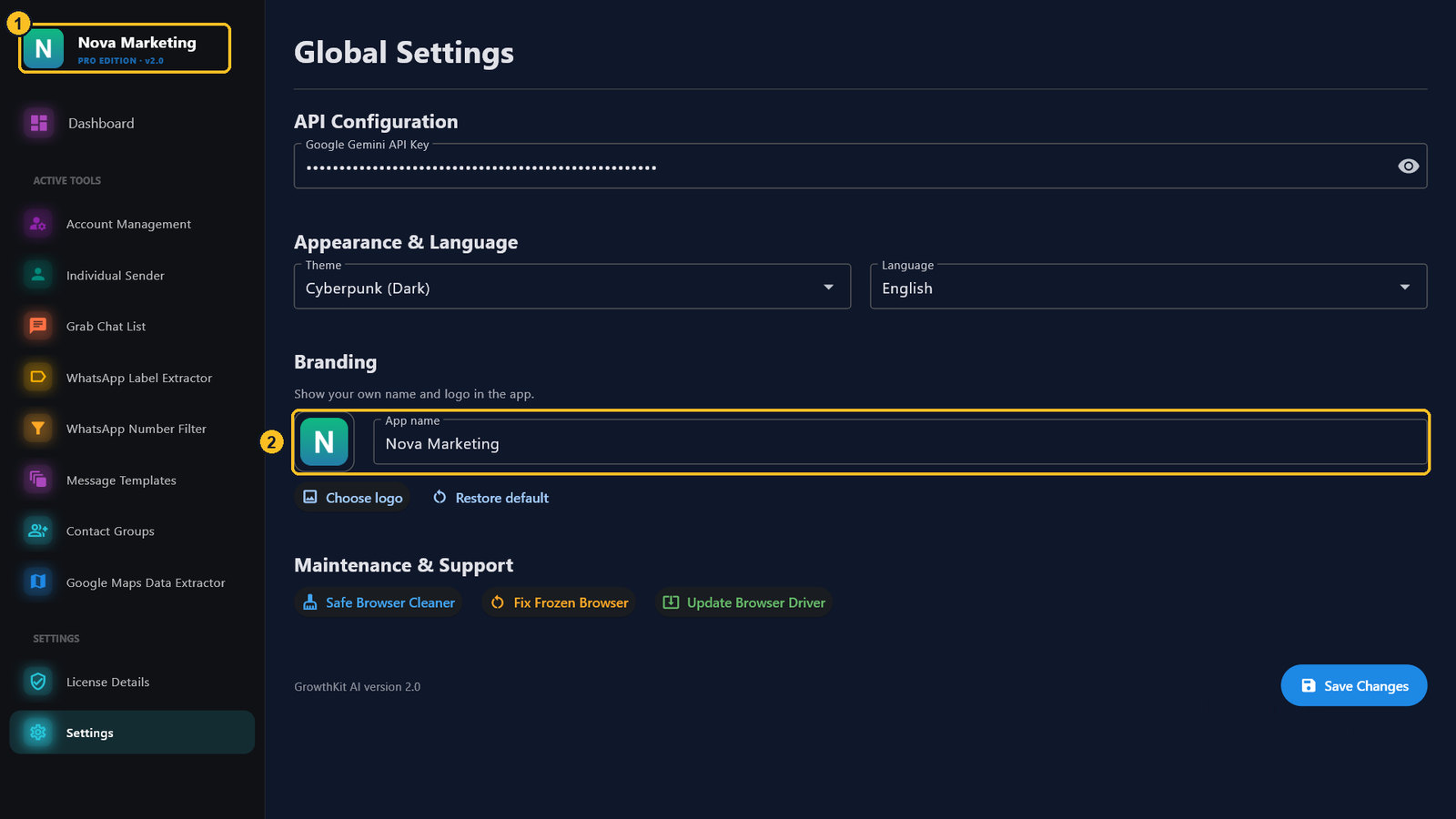
%APPDATA%\GrowthKitAI (the logo is copied to the branding folder). They stay when you install an update. To give every customer your brand from the first start, change the defaults in the source code instead.Logo, icon and name in the source code
The paths below are inside Source_Code\GrowthKit_AI.
| What to change | File | Notes |
|---|---|---|
| Default logo (sidebar, Settings) | ui\logo.png | PNG, 128 × 128 px, transparent background. Keep the file name. |
| App icon (program file, taskbar, installer, shortcuts) | installer\icon.ico | A Windows .ico with the sizes 16, 24, 32, 48, 64, 128 and 256 px. |
| Default app name | services\branding.py (DEFAULT_NAME) and "app_title" in every file in translations | Change both so every language shows the new name. |
| The line under the name ("PRO EDITION · v2.0") | ui\app_layout.py | Search for PRO EDITION. |
| Program name in Windows (program folder, Start menu, Apps list) | installer\growthkit.iss (AppName, AppExe) and installer\build.py (APP_NAME, COMPANY) | AppExe must be APP_NAME + .exe. |
AppId in installer\growthkit.iss. It lets a new version replace the installed one and keep the customer's data.Colors and themes
The app has 12 themes; the user picks one in Settings → Theme. Each theme is a set of colors in ui\themes.py:
| Key | Used for |
|---|---|
mode | ft.ThemeMode.DARK or ft.ThemeMode.LIGHT. |
bg | The page background. |
sidebar | The sidebar background. |
primary | The main color: buttons, the selected menu item, icons and highlights. |
text | The main text color. |
card_bg / input_bg | Cards and input fields. |
divider | Lines between sections. |
Colors are hex codes like "#0f172a" or Flet colors like ft.Colors.BLUE_600.
- Change a theme's colors: edit its values in
ui\themes.py, for example"primary": "#16a34a"inTHEME_DARK. - Add a theme: copy one of the theme blocks in
ui\themes.pyand give it a new name, such asTHEME_BRAND. Add it to the list inget_theme()with a short key, such as"brand": AppTheme.THEME_BRAND. Then add it to the Theme list inui\views\settings_view.py:ft.dropdown.Option("brand", "My Brand"). - Default theme for new installs: set
"theme"inservices\settings_manager.pyto a theme key, such as"brand". An unknown key uses the Cyberpunk (Dark) theme.
Language files
Every text in the app is in translations, one JSON file per language: en.json, ar.json, fr.json and so on. Each line is a key and its text:
"settings_brand_logo_btn": "Choose logo",
- Change a text: edit the text on the right and keep the key on the left. Keep words in braces such as
{seconds}or{reason}, because the app fills them in. - Add a language: copy
en.jsonto a new file named with the language code, for examplede.json, and translate the texts. Then add it to the Language list inui\views\settings_view.py:ft.dropdown.Option("de", "Deutsch (German)"). - Right-to-left languages: Arabic and Urdu are shown right to left. For another right-to-left language, search the code for
["ar", "ur"]and add your language code to each of these lists. - Default language for new installs:
"language"inservices\settings_manager.py. - Missing texts are shown in English, so a new language works even before it is fully translated.
- The Key Generator has its own language files in
Source_Code\Key_gen\translations.
.venv\Scripts\python main.py to check it, then rebuild the installers (see Source code). Changes in the source code reach your customers only through the new installers.19Safe use
20Troubleshooting
| Message | What to do |
|---|---|
| Could not prepare the browser… | Check the internet connection and try again, then try Update Browser Driver in Settings. |
| This WhatsApp account is not logged in… | The account was logged out from the phone. Link it again in Account Management. |
| This account is already open in another window… | Close the other window, or use Fix Frozen Browser. |
| The browser window was closed, so the task stopped. | Don't close the browser window while a task runs. Run the tool again. |
| Google asked to confirm you are not a robot… | Untick Hide Browser and complete the check yourself. |
Where the data is
- Accounts, groups, templates and settings:
%APPDATA%\GrowthKitAI. Each file has a.bakcopy that is restored automatically if the file is damaged. - Google Maps results:
Documents\GrowthKit AI\Results. - Error log:
%APPDATA%\GrowthKitAI\growthkit.log.
21Source code
Only needed if you want to change or rebuild the app. Python 3.13 (64-bit).
- In
Source_Code\GrowthKit_AI:python -m venv .venv, then.venv\Scripts\pip install -r requirements.txt. - Run the app:
.venv\Scripts\python main.py. - Run the Key Generator from
Source_Code\Key_gen:pip install -r requirements.txt, thenpython keygen.py. - Rebuild the installers: in
Source_Code\GrowthKit_AI, install the tools ininstaller\requirements-build.txtand Inno Setup 6, then run.venv\Scripts\python installer\build.py. It builds the Key Generator from..\Key_gen.
| Folder | Contents |
|---|---|
GrowthKit_AI\main.py | Starts the app. |
GrowthKit_AI\ui | Screens (Flet). |
GrowthKit_AI\core | License check, storage and the tools (WhatsApp, Google Maps). |
GrowthKit_AI\services | Settings, groups, templates and maintenance. |
GrowthKit_AI\translations | Interface texts in 11 languages. |
GrowthKit_AI\installer | Build and Inno Setup scripts. |
Key_gen | Key Generator. |
22Support
When you contact us for help, please include:
- the app version (in License Details),
- the message you saw, or a screenshot,
- the file
%APPDATA%\GrowthKitAI\growthkit.log.